
The Print Triage Flow: Printer, Queue or User?
Tuesday, 09:05, at Stonebridge Insurance. Two tickets arrive within a minute of each other from the claims floor. The first says "Nobody on claims can print, the whole team is stuck". The second, from a desk at the far end of the same floor, says "My printing has stopped working, can someone look at my laptop". Asha, who has run the desk for six years, reads both and knows already that they are probably one problem. The second requester is about to have their laptop examined for twenty minutes for no reason. Her new colleague Ben has already opened the second ticket, because it was his turn, and is walking over to the laptop with a cable.
A printing problem lives in one of a small number of layers, and the whole skill of printer triage is finding the layer before touching anything. Print triage is a fixed sequence of cheap tests, run in order, each of which rules a layer in or out. The fix is then applied once, at the right layer. It is not guessed at the user's machine while the real fault sits on the server for everyone. This article is part of our Printer Support series. The previous article explained why printers generate so many tickets. This one is about closing each of them faster, and the next two are about making the common causes stop recurring.
It starts with the layers a print job passes through, then the two questions to ask before any test. Next come the five tests in order. They are the printer's own test page, the queue on the server, and a test page from the server. Then come another user on another machine and the requester's own machine. After that: the flow in one picture and what to write in the ticket so the fix holds. It ends with a short war story and the print triage card to copy.
The Layers a Print Job Passes Through
When someone presses print, the document goes on a journey with four stops, and a fault at any one of them looks identical from the user's chair. The first stop is the user's own machine. The application hands the document to the driver, the software that turns it into the printer's language. The driver hands it to the machine's own queue. The second stop, on any well-run network, is the print server: a computer that owns the printer on behalf of everyone. It holds the shared queue, keeps the one copy of the driver that every machine downloads, and sets the defaults. The third stop is the path from the server to the printer, which is the network. That means a cable, a switch port, an address, and the printer being awake enough to answer. The fourth is the printer itself, a machine with paper, toner and a great many moving parts.
The queue is the line of jobs waiting at a stop, and it exists at two of them: on the user's machine and on the server. A job sits in the machine's queue until the server accepts it, then in the server's queue until the printer accepts it. The printer takes jobs strictly in order. That last fact is the single most important thing in this article. If the job at the head of the server's queue cannot print, for any reason, nothing behind it prints either. Forty people experience a dead printer because one person sent something the printer could not digest. Queues do not skip. They wait.
Offices without a print server have three stops instead of four. Each machine talks to the printer directly, with its own driver and its own private queue. There is no shared layer to look at. The triage flow still works, with the server steps replaced by a look at the printer's own small queue. But every fix is a visit to a machine rather than a change in one place. That is the case for a server that the article on drivers, queues and defaults done once makes at length. For the rest of this article, assume a server exists. If yours does not, read this as a description of what you are missing.
Two Questions Before Any Test
The first question is whether it is one person or everyone. The fastest way to ask it is the one the requester can answer from their chair: "Can the person next to you print to it?" One answer sorts the ticket into one of two halves. If nobody near the device can print, the fault is in a shared layer: the device, the path or the server's queue. The fix will be one fix for everyone. If only the requester cannot print, the shared layers are working and the fault is on their machine, and nothing done on the server will help. Asha's two tickets answered the question for each other: the whole claims team was stuck, so Ben's laptop was not the problem. The cable he was carrying would have fixed nothing.
The second question is what the printer's own screen says, and the answer settles more tickets than any test. Printers are more honest than their reputation suggests. The answer might be: "Load paper in tray two", "replace toner", "close rear door", "paper jam", an error code, or a blank screen because the device is asleep or unplugged. Each is a diagnosis, delivered by the device, read by the person standing in front of it. The desk, two floors away, cannot see it, and so it has to be asked for. Put both questions on the request form for printing problems and in the first reply to any ticket that arrived without them. A surprising share of "cannot print" closes in the first exchange with "it needed paper", which is not a fault. Another answer is "it says error with a number", which tells the triage flow where to start.
Asking is not stalling. Some desks feel that replying with a question is an admission that they cannot help, and race to the machine instead. The opposite is true: a desk that walks to every printer before asking what the screen says is choosing a twenty-minute test over a twenty-second one. Ask, then test. The elements of a first reply that asks once and gets everything are in Gathering the Right Information Up Front; for printers, the two questions are the label on the device and the words on its screen.
The Flow in One Picture
The five tests below are arranged from the printer outward to the user, because that is the order of cost and the order of blast radius. The printer's own test page costs a walk and settles whether the device can put ink on paper at all. The queue on the server costs a look and finds the stuck head job that is stopping everyone. A test page from the server proves the path. Another user's print proves the shared driver and queue. Only after all four have passed does the requester's own machine come under suspicion. By then the test is cheap too, because every other layer is known good. The picture shows the five tests left to right with the layer each failure names underneath. The first test that fails owns the ticket, and the flow stops there.
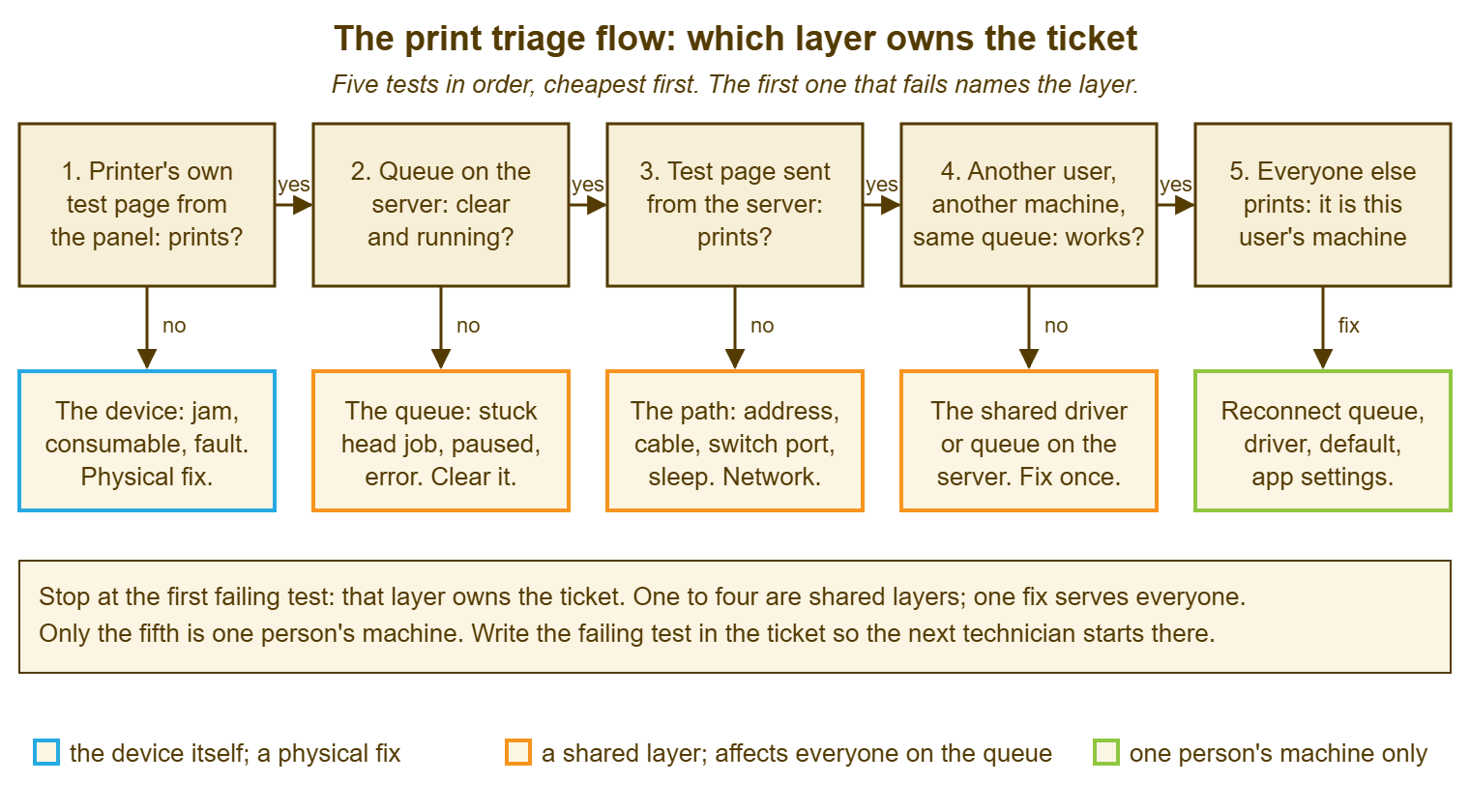
The order looks slow to a technician who has a hunch, and the hunch is sometimes right. The flow is not there for the days the hunch is right. It is there for the days it is wrong. A technician reinstalls a driver on a machine whose printing was stopped by a job at the head of the server's queue. They declare it fixed because the queue happened to clear while they were working. They are back at the same desk on Thursday. Five tests in order take less time than one wrong fix, every time, and the ticket note at the end says which test failed, which a hunch never does.
Test One: The Printer's Own Test Page
Every office printer can print a page from its own front panel with no computer involved, usually called a configuration or test page. That page answers the first question: can this device put ink on paper right now? If it cannot, nothing upstream matters, and the ticket belongs to the physical layer. That means a jam, an empty tray, a consumable at its end, a door not quite closed, or a fault that needs an engineer. The printer's screen will usually have said so already, which is why the screen is asked about first. The page is the confirmation when the screen is blank, cryptic, or reported second-hand.
The test page also carries the printer's network address and its name, which test three needs. It carries the page count and consumable levels, which the measuring article wants recorded whenever a technician is standing there anyway. Teach the local champion, the person on each floor who changes the toner, to print one. Then the desk can be told "the test page printed fine" before anyone walks over. If the test page prints and the device shows no error, the device is innocent until proven otherwise, and the flow moves to the server.
Test Two: The Queue on the Server
Open the shared queue on the print server and look at it before touching anything. The queue is where most "nobody can print" tickets live, and it tells its story in a glance. Three things to see. Is the queue paused, which a technician can do by accident and which stops everything silently? Is the printer, as the server sees it, in an error state? And is there a job at the head of the queue that has been there for twenty minutes while jobs pile up behind it? That job is the usual culprit. It might be a document the printer could not interpret or an enormous file that will take the rest of the morning. It might be a job sent to a tray that is empty. Or it might come from a machine with a mismatched driver that the printer is quietly refusing.
The fix for a stuck head job is to remove it, resume the queue if it was paused, and watch the next job go through. Tell the person who sent the removed job, because they will otherwise send it again. Ask what it was, because a job that jams the queue once will do it again next week. A scanned brochure with a hundred full-page images is the classic. The answer is usually to print it in smaller batches or from a different application. Do not clear the whole queue unless you must. Every job behind the stuck one belongs to a person who is waiting, and clearing them all converts one ticket into fifteen.
Occasionally the queue is clear, the printer shows no error, and jobs still sit there. In that case, the service on the server that manages the queues has stopped or jammed itself. Restarting that service is a legitimate fix, and a blunt one. It affects every queue on the server, not only the one in the ticket. So it is done after the queue has been looked at, not instead of looking, and it is written in the ticket as what it is. A desk that restarts the queue service as its first move for every printer ticket is a desk that has never found out what was wrong with any of them.
Test Three: A Test Page from the Server
With the queue clear and running, send a test page from the server itself to the queue in question. This one page proves the whole shared path. That includes the server's copy of the driver, the queue, the network between the server and the printer, and the printer's willingness to accept a job. If it prints, everything shared is working and the fault has to be on the requester's side of the server. If it does not, and test one showed the device can print, the path is the problem, and the path is the network.
Four path faults account for nearly all of it. The printer's address has changed, because it took a new one from the network after a power cut and the server is still sending to the old one. The cure is a fixed address for every printer, which the queue standard in the next article insists on. The printer is asleep so deeply that it does not answer, which some models do after a weekend. A touch on the panel cures this, and a setting on the device prevents it. A cable has been pulled, by a cleaner, a desk move or a chair, and the printer's screen says it has no network. Or a switch port has been changed by someone tidying the network, which is a conversation with whoever did the tidying. Check that the server can reach the printer's address at all before anything else; that single check sorts the address and cable faults from the rest in seconds.
When the path fault is a changed address or a dead switch port, it is worth asking what changed and when. A printer that has had the same address for three years does not lose it spontaneously. The usual answer is a network change made without a note, and the usual follow-up is the conversation about recording changes, which is a conversation for another article. Write the cause in the ticket and move on. The printer did not change its own address, whatever the kitchen says.
Test Four: Another User, Another Machine
The server can print, so now the question is whether the shared queue works for ordinary users. Ask someone other than the requester, on a different machine, to print a page to the same queue. If it prints, the shared layers are all proven and the fault is on the requester's machine, which is test five. If it does not, the problem is in what the server hands to users. Most often it is the shared driver. Or it is the queue's permissions, or a default on the queue that points every job at a tray that does not exist. A fault here is one fix on the server that cures everyone, and it is found by this test and no other, which is why the test exists.
Choose the second user carefully. A colleague on an identical machine, set up the same way at the same time, may share the fault and prove nothing. A colleague on a different model of laptop, or a desktop, is a cleaner test. And ask them to print something small and plain, a single page of text, because the test is of the path, not of the document. A forty-page colour brochure is a different test, and it is the one that produced the stuck job in the first place.
Test Five: The Requester's Own Machine
Only now is the requester's machine examined, and the examination is short, because everything else is known to work. Four things, in order. Is the machine actually connected to the shared queue, or to an old direct connection that still carries the printer's former address? Reconnecting it to the server's queue, which pulls a fresh copy of the driver down from the server, cures the first and the second at once. Is the default printer the one the requester thinks it is, or has it drifted to a printer on another floor? That is where "it printed on the wrong one" tickets come from. Is the application doing something odd: printing to a file, selecting a paper size the printer does not have, asking for a tray that is empty? And is there a job stuck in the machine's own small queue, which behaves exactly like the server's queue in miniature?
Reinstalling the driver is the fix every technician reaches for first and the one the flow puts last. It makes sense only when every shared layer has been proven and the machine's connection to the queue has been renewed. A driver that is pulled from the server on reconnection is the right driver by definition. A driver installed by hand from a download is a second copy, and the drivers and queues article is largely about why second copies breed tickets. If the machine still cannot print after all four checks, you have a genuinely unusual problem. The ticket note will say so, with the four previous tests listed as passed. That is the start the next technician needs.
Remember: ask whether anyone else can print and what the printer's screen says, then run the five tests in order and stop at the first one that fails. That layer owns the ticket. Write which test failed in the resolution note, every time.
Where the Requester's Words Point
The flow runs in order, but the requester's words often say where the first failure will be. A technician who has read the ticket can start the walk already knowing the likely layer. The table below maps the common phrases to the test most likely to fail and the layer behind it. It is a prior, not a verdict, and the tests are still run in order from wherever the technician starts. "Nobody can print" starts at the queue. "Only mine" starts at test four, to prove it, and goes to test five. "It says offline" is usually the path. Pages of symbols are the driver. The wrong printer is a default.
| What the requester says | Likely layer | Test that usually fails | Usual fix |
|---|---|---|---|
| "Nobody on our floor can print" | Queue or path | Two or three | Remove the stuck head job; check the address and the cable |
| "Only I can't print; everyone else is fine" | The requester's machine | Five | Reconnect to the shared queue; check the default printer |
| "It says offline" | Path, or a sleeping device | Three | Wake the device; confirm the server reaches its address |
| "It printed forty pages of symbols" | Driver | Four or five | Remove the job; renew the driver from the server; find who sent it |
| "It printed on the wrong printer" | Default printer or queue name | Five | Set the default; rename queues so the location is in the name |
| "It says paper jam" or "replace toner" | The device | One | The physical article; the on-printer card |
| "It just sits there saying printing" | Queue, either one | Two, then five | Look at the server queue first, then the machine's own |
| "Scanning stopped working" | The device's accounts | Outside the flow | Check the account the device sends from and the folder it writes to |
Writing It Down So the Fix Holds
The resolution note on a printer ticket has one job: say which test failed and what was done at that layer. Then the next ticket about the same device starts from knowledge rather than from the beginning. "Fixed printing" is not a note. "Nobody on claims could print; device test page fine; server queue had a stuck head job from a scanned brochure sent at 08:52; removed it, queue resumed, next jobs printed; sender told to print in batches of ten pages" is a note, and it takes forty seconds longer to write. It also makes the quarterly count in the measuring article possible, because "stuck head job" can be counted and "fixed printing" cannot. The discipline of writing steps a stranger can follow is in Writing Reproducible Steps; for a printer ticket, the steps are the five tests and their results.
The note also matters because printer fixes are provisional. A queue cleared at nine has not been tested until the ten o'clock print run. A driver renewed on one machine has not been tested until that user prints something complicated on Friday. When "it has stopped again" arrives, it should land on the same ticket, not a fresh one. Then the desk can see that this is the second time and the first fix did not hold. If you run QuerySolv, the requester's reply to a resolved ticket reopens it. So the second report arrives on the record that already holds the first diagnosis. In any tool, the technician's habit of asking the requester to reply to the original message rather than raise a new ticket does the same job. A printer that is fixed three times in three separate tickets has never been fixed at all, as far as any report can tell.
One more note belongs in every printer ticket where a technician stood at the device: the page count and the consumable levels from the test page. They cost nothing to write down and they are the raw material for the decision, two quarters from now, about whether this device stays. A desk that records them on every visit has a history of the device for free. A desk that does not has a device with no past, which is the hardest kind to retire.
A Short War Story: The Morning of Twelve Reinstalls at Harbourview Clinic
At Harbourview Clinic, a group practice with twelve consulting rooms, the printer that produced prescriptions and referral letters stopped at ten past eight on a Monday. The first three tickets all came from individual clinicians saying "my printing has stopped", because each of them assumed the fault was theirs. A technician called Marcus, two months into the job and keen, took the tickets in order and went to the first consulting room. He reinstalled the driver by hand from a download and found it still would not print. He did the same in the second room, and the third. By half past nine he had reinstalled drivers on twelve machines while the practice manager handwrote prescriptions and the waiting room filled. His colleague Joanne, arriving at half past nine, opened the queue on the server and found a referral letter with an embedded scan at the head. It had been sent at 08:07 and refused by the printer ever since. She removed it, and twelve rooms printed within a minute. The cost was a morning of two technicians, a practice manager's morning, about forty patients seen late, and twelve machines now carrying a hand-installed driver. That driver did not match the server's and generated its own tickets for the following month. The lesson, written on a card and stuck to the desk's monitor by Joanne that afternoon, was the order of the tests. The queue before the machine, always, because one stuck job looks like twelve broken laptops.
The Print Triage Card
The card below is the flow on one page, written to be followed by whoever picks up the ticket. It has the two questions at the top, the five tests in order with their checks, and the layer each failure names. It ends with the note to write. Print it, which is a sentence this series will not apologise for, and keep it where the printer tickets are answered. It is deliberately dull. The next article's queue standard removes several of these failures permanently; until then, this card closes them faster.
THE PRINT TRIAGE CARD — RUN IN ORDER, STOP AT THE FIRST FAILURE
Ticket: ________   Device label: ______________   Queue name: ______________   Requester: ______________

ASK FIRST (from the chair, before any test)
   Can the person next to you print to it?   yes = one person's machine (go to test 4)   no = shared layer (start at test 1)
   What does the printer's own screen say?   ______________________________  (a message here is a diagnosis; act on it)

TEST 1 — THE DEVICE
   Action: print the printer's own test page from its panel.
   Check:  it prints, no error on screen.          Fails = the device: jam, consumable, door, fault. Physical fix or engineer.
   Record: page count ______   toner / drum level ______   address shown on page ______________

TEST 2 — THE QUEUE ON THE SERVER
   Action: open the shared queue. Look before touching.
   Check:  not paused, no error state, no job at the head older than a few minutes.
   Fails = remove the head job, resume the queue, tell the sender, ask what it was. Restart the queue service only if the
           queue is clear and jobs still sit; write that you did.

TEST 3 — A TEST PAGE FROM THE SERVER
   Action: send a test page from the server to this queue.
   Check:  it prints.                              Fails = the path: confirm the server reaches the printer's address;
           changed address, sleeping device, pulled cable, changed switch port. Fix the path; give the device a fixed address.

TEST 4 — ANOTHER USER, ANOTHER MACHINE
   Action: a different user, a different kind of machine, prints one plain page to the same queue.
   Check:  it prints.                              Fails = the shared driver or queue on the server. Fix once on the server.

TEST 5 — THE REQUESTER'S MACHINE (only when 1 to 4 pass)
   [ ] connected to the shared queue, not an old direct connection; reconnect to renew the driver
   [ ] default printer is the one they expect
   [ ] application: printing to a file, odd paper size, empty tray selected
   [ ] nothing stuck in the machine's own queue

WRITE IN THE RESOLUTION NOTE
   Which test failed: ____   What was found: ______________________   What was done: ______________________
   Page count and consumable levels if you stood at the device.   Ask the requester to reply here if it recurs.
Ben turned back halfway across the claims floor when Asha called after him with the first ticket's subject line. The two of them opened the server queue together. A scanned policy document, sent at 08:58, was at the head of the queue, with thirty-one jobs behind it. Removing it took four seconds. The resolution note took forty, and it named the sender, who was asked to print scans in batches and did. The second requester's laptop was never touched, which is the point of the order: five tests, and the laptop was the fifth.
Frequently Asked Questions
We have no print server; every machine connects straight to the printer. Does the flow still apply?
Why not just restart the queue service first? It fixes most things.
The printer's test page prints but every job from the server fails. Where do I look?
How long should I spend on the requester's machine before escalating?
Should users be allowed to clear the server queue themselves?
What do I put in the ticket category for a stuck queue job?
From the QuerySolv team: we build self-hosted help desk software for Windows. QuerySolv runs as one Windows service on your own network. It takes requests by web form, e-mail, live chat, social messages and REST API. It is licensed once per installation rather than per agent per month. The free trial runs the full product for 30 days.