
Know what is late, who is overloaded and what to fix next
System administrators install QuerySolv. Support managers live in it. This page is about what you get once the service is running: the numbers, the controls and the safeguards that let you answer for a queue without reading every ticket in it.
- Four SLA targets per priority, measured in your own working hours, with a countdown on every covered ticket.
- Seven reports, each built around a question, with CSV export and a print layout.
- Permissions per agent, per department, with four presets from Trainee to Senior.
- Agents are e-mailed for two things only; everything else lives in the queue.
- Every action on a ticket is recorded with a snapshot, and tickets cannot be deleted.
Service levelsReportsCoaching the teamPermissionsConsistent answersSafeguardsAudit trailWhat to know first
Know what is late before the customer tells you
A service level agreement in QuerySolv is a set of time targets that the service applies to incoming tickets automatically. It works out each deadline, watches the clock, shows agents how long is left, and records a violation when a deadline passes unmet.
Four targets per priority
First response, resolution time, subsequent responses and update interval. Leave one blank and it simply has no target, so you can promise response and resolution times without committing to an update cadence.
The hours you actually work
Around the clock, or a weekly grid with two windows a day, so a lunch break or a split shift is counted properly. Holidays recur every year and can be a whole day or part of one.
Rules decide which agreement applies
Each department has an ordered list and the first match wins: all requests, requests by e-mail, requests submitted online, a requester's e-mail domain (with wildcards) or the value of a form field. A premium customer's domain gets the agreement it was promised without anyone tagging tickets by hand.
Countdowns where agents already look
Every covered ticket in the list carries a chip for its nearest deadline. It turns to a warning color inside the last hour. The list filters to tickets that are Breached or Due within 24 h.
3h 15m → 42m left → 25m over
Breaches that reach someone
A missed deadline is recorded on the ticket within tens of seconds and e-mailed to its assignee. It can also go to a webhook and the API event feed, so your chat tool or monitoring can hear about it.
Working on day one
A new installation has a default agreement already bound to the default department: from one hour to first response and four hours to resolution for an Emergency, down to two days and seven days for Low.
Raising a ticket's priority moves it to tighter targets. Escalating it raises its visibility but does not change the clock.
From deadline to your inbox
| Moment | What QuerySolv does | Where you see it |
|---|---|---|
| A ticket arrives | The department's rules pick an agreement, and each deadline is worked out in that agreement's working hours. | The SLA panel on the ticket, and a countdown chip in the ticket list. |
| Inside the last hour | The chip turns to a warning color. | The ticket list, and its Due within 24 h filter. |
| The deadline passes | The violation is recorded on the ticket within tens of seconds and e-mailed to its assignee, if it has one. It can also go to a webhook and the API event feed. | The ticket's history, the assignee's inbox, the Breached filter, and your chat tool or monitoring if you connected one. |
| Priority is raised | The ticket moves to that priority's tighter targets. Escalating it raises visibility but does not change the clock. | The SLA panel and the countdown chip. |
| End of the month | First-response compliance for the period is worked out against a 90 percent target, with the backlog trend beside it. | The Service Performance report, exported to CSV or printed. |
Professional+ The SLA engine, webhooks and the API event feed are part of the Professional and High Availability editions. Tickets that no agreement covers are judged against a fixed four-hour first-response target on the dashboard and in the reports, so the numbers mean something before you have configured anything.
Reports that answer the questions you get asked
The Reports section is arranged as seven questions, not seven tables. Each carries a colored dot when its numbers are off target, marked Watch or Action needed.
| Section | The question | What it shows |
|---|---|---|
| Overview | What changed? | Tickets created and solved, first-response compliance, median first response, satisfaction, reopen rate, and a created-versus-solved chart |
| Service Performance | Are we keeping up? | First-response compliance against a 90 percent target, the backlog trend, the backlog by age, and time to resolve by priority at the median and the 90th percentile |
| Customer Satisfaction | How do customers feel? | The satisfaction score split into positive, neutral and negative, replies and handoffs per ticket, and reopened tickets |
| Demand & Forecasting | Where is the work coming from? | A busiest-hours heat map, new tickets by department, a channel comparison including first-contact resolution, and the most-viewed knowledge-base articles |
| Team Performance | How is the team doing? | Solved counts, average first response, compliance and satisfaction per agent, current workload per agent, and escalation rates |
| Agent evaluation | How is each of my agents doing? | A supervisor's view of the agents they supervise, each with a verdict |
| Issues to Address | What to fix next? | Every Watch and Action-needed verdict in one list, most urgent first, each linked to the evidence behind it |
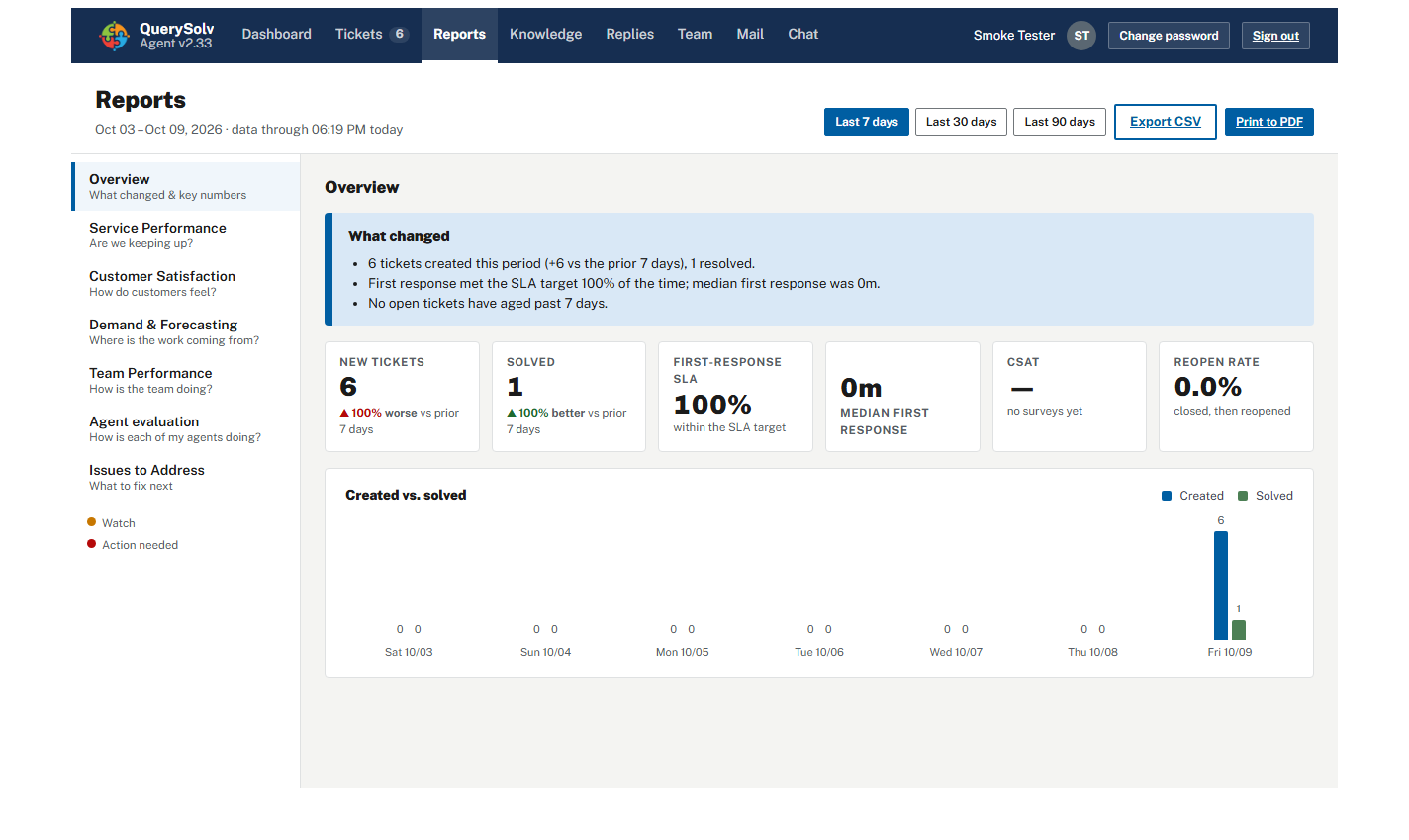
The Reports section. The seven questions are listed down the left side.
Coach with evidence, and only your own people
Supervision is explicit
An administrator records which agents a supervisor is responsible for, and the two must share a department. The Agent evaluation report then shows that supervisor those agents and nobody else.
A verdict with the detail behind it
Each agent's row carries a verdict and expands into a breakdown by department, by quality and mix, and by knowledge-base contribution. A one-on-one can start from the numbers.
Coach On track Recognize
See overload before it becomes backlog
Team Performance shows each agent's current workload against a ten-ticket working limit, next to their solved count, first-response time and satisfaction.
Ratings arrive where you can use them
A customer's score appears on the ticket and feeds the reports as soon as it is given.
Motivation without a leaderboard
Each agent has a private progress card on their own dashboard: their first-response streak, personal records and badges. It is labeled “Visible only to you” and that is true. There is no leaderboard, no team view and no supervisor view of it, and an administrator can switch it off for any agent.
Decide who can do what, department by department
QuerySolv has no global roles. An agent is added to a department with a set of permissions for that department, so the same person can be a full participant in one team and limited to their own tickets in another.
Four presets, so you rarely check boxes one by one:
- TraineeSees only the tickets assigned to them. Can reply, add private notes and write knowledge-base articles.
- JuniorGets the whole department's queue, priority and escalation.
- Mid-levelAdds status changes, merging and splitting, and sharing predefined replies.
- SeniorGets everything, including moving tickets to another department.
Permissions in groups you can reason about
Respond, update, reorganize and publish, behind a view setting that chooses between all of the department's tickets and only those assigned to the agent.
Scoping holds everywhere
The queue, search, direct links, the dashboard, the reports and live chat all apply the same check. A ticket outside an agent's departments answers “This ticket no longer exists.”
A sensible start for someone new
Create the account, apply the Trainee preset, and check the box that makes them change their password at first sign-in. With Active Directory sign-in (Professional and High Availability editions) they use the password they already have, and they cannot sign in once their directory account is disabled.
Keep answers consistent
Predefined replies with an owner
A reply can be personal, shared with one department or shared with every department, and sharing is a permission you grant. A new installation starts with three shared replies: acknowledging a request, asking for more information, and closing.
A knowledge base that does not publish by accident
New articles start as Agents only. Making one public is a separate permission. A Needs attention panel shows each agent their own unfinished drafts and any article flagged as outdated, and a Most used list shows what is actually being read.
Internal notes are not for customers
A note is never mailed to the requester and never leaves in a webhook or the API event feed. One thing to know: if you enable AI drafting, notes are part of the conversation sent to the provider you chose.
Optional AI drafts in your own words
On the Professional and High Availability editions, drafts can be grounded in your knowledge base and in similar resolved tickets from the same department, and an agent always reviews before sending. See AI on your terms.
Nothing slips through quietly
Every agent opens on a ranked day
Five counters (waiting on you, waiting on customer, response overdue, due within one hour, reopened in the last seven days), then their five most urgent tickets, then escalations and reopens across everything they are allowed to see.
The ticket list keeps itself current
It checks for changes every 30 seconds and filters by assignment, status, department, priority and SLA state. Unassigned work has a view of its own.
A reply reopens the ticket
When a requester answers a resolved or closed ticket, it reopens and the reopen is counted. Nobody is ignored because a ticket was marked done.
Ownership is never ambiguous
The first public reply to an unassigned ticket assigns it to the agent who wrote it. If two agents claim the same ticket at the same moment, one wins and the other is told.
Two e-mails, and only two
Agents are e-mailed when someone assigns them a ticket and when one of their deadlines is breached. Everything else lives in the queue, so the alerts that do arrive get read.
Escalation is visible
Each press raises a ticket one level, up to nine. Escalated tickets are badged on dashboards, and escalation rates appear in the reports.
Duplicates and tangles get sorted out
Merge two tickets from the same requester, link related tickets under a shared incident name, or split a second problem into a ticket of its own.
Suspicious mail waits for a person
Held e-mail sits in a review queue, grouped by the rule that caught it and labeled Suspected phishing, Needs a look or Likely junk. Only the people you designate can approve or delete it.
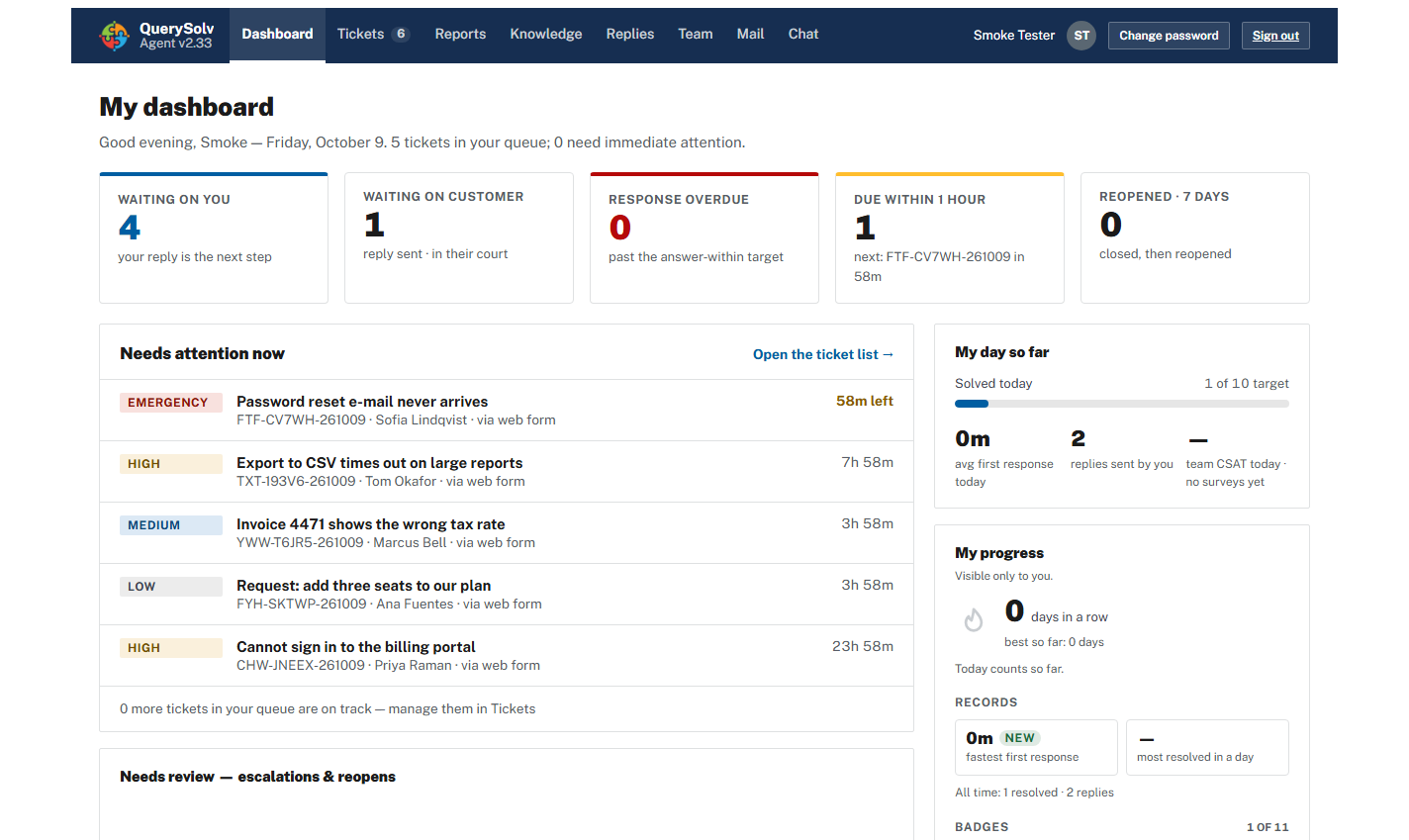
The agent dashboard: five counters, the most urgent tickets first, and the private progress card on the right.
A record you can stand behind
- Every reply, note, rating, status change, assignment, priority change, escalation, transfer, merge, split, link and SLA violation is recorded as an event, with who did it and a snapshot of the ticket afterwards.
- That history is what lets the reports show how long a ticket spent at each status, who handled it, and how often it changed hands.
- The same events are written to the application log as readable audit lines, so they can be collected outside the database.
- Tickets cannot be deleted. There is no delete action in the workspace, the control panel or the API, and no permission that enables one.
QuerySolv is licensed once per installation and the license does not expire. The edition sets how many agents can sign in, and nothing is metered afterwards, AI included. See how the license works and compare editions.
What to know before you rely on it
These are documented behaviors, not bugs. Design your process around them.
The SLA clock has no pause
On Hold and Awaiting Reply do not stop it. Only time outside working hours and inside holidays is excluded.
A “day” in a target is 24 hours of working time
On an eight-hour schedule, two working days is entered as 16 hours.
There is no log of past breaches
The Breached filter shows open tickets that are past a deadline now. Earlier breaches are on each ticket, in the assignee's e-mail, in the reports, and in a webhook or the event feed if you subscribe one. A breach on an unassigned ticket e-mails nobody, which is a good reason to assign work promptly.
Changes need an administrator and a restart
Agreements and permissions are edited in the desktop control panel, and changes to them take effect when the service restarts.
Close with a reply
The request for a rating rides on the agent's resolving reply. Changing the status on its own closes the ticket silently: the requester is told nothing and is not asked to rate.
Some things are fixed
Five priorities, ten statuses and a 1 to 10 rating scale ship with the product and cannot be changed.
The ticket list is one list
It is ordered by last update, its columns do not sort, and it is not paged.
See it with your own tickets
The reports and the dashboard only mean something with real work in them. Install the trial, point one department's mailbox at it, and look again in a week. It runs for 30 days with every Professional edition feature and unlimited agents.
 Download Installer with Free Trial