
The Restore Workflow in Plain Words, Layer by Layer
Wednesday, 11:15, at Ashgrove Housing. Marcus has done the intake on ticket 5118 properly. Hollie in the tenancy team lost the "Voids inspections" folder, about a hundred and twenty photographs and a tracking spreadsheet, from the housing share. She last saw it whole three weeks ago on a Friday and noticed it missing this morning. The search by name found nothing. Her recycle bin has nothing. The file service's bin has nothing either, because it keeps deleted files for a couple of weeks at Ashgrove and the folder went before that. There is no other copy. Marcus has reached the end of the quick wins. The rest of the ticket is the part of the job he has read about and never done.
A restore is bringing a file or folder back from a copy that was kept somewhere the requester cannot reach. The workflow for it is a fixed order of places to look, from the nearest copy to the farthest. One rule holds at every layer. The recovered copy goes beside the original, never on top of it. This article is part of our Deleted Files & Recovery Requests series. The questions that come before any restore are in The Recovery Request: What to Ask First; this article starts where that one hands over.
It covers the four layers and why the order is fixed. Then we cover each layer in turn: version history, the recycle bin, the snapshot and the backup. For each, we explain what it holds and who can reach it. Next come restoring to a side location and why over the top is never right, then confirming with the requester. We cover the note that records what was restored from where. A short war story and the restore record to copy finish the article, in that order.
The Four Layers, Nearest First
Every organisation keeps its files with some number of protective layers around them. And the restore workflow is simply visiting those layers in order of distance from the file. The nearest layer is version history: earlier copies of the same file. The file service keeps them automatically each time the file is changed. They sit right beside the current one. The next is the recycle bin: a holding area where deleted files wait, for a while, before they are truly gone. The next is the snapshot: a frozen copy of a whole share or volume as it was at one moment. It is taken on a schedule, usually reachable only by an administrator. The farthest is the backup: a separate copy of the data, kept on different storage or in a different place. It is made on a schedule and reached by asking whoever runs it.
The order is fixed because distance costs time and reach. The nearest layers are fast, specific and short-lived: version history brings back one file in a minute but may only reach back weeks. The farthest layer is slow, broad and long-lived. A backup can reach back months or years but takes hours to a day and needs another person. It brings back the state of a whole folder at the moment the backup ran, not the moment the requester wanted. Start near. Each layer you skip is one you will be sent back to by someone asking why you did not check it. Each one you try in order narrows what the next must find.
The picture below draws the four layers as nested rings around the file, inside out. It shows what each holds, what it rescues, how far it reaches back and how long a restore from it takes. The reach figures are one fictional desk's and are there to show the shape, not to be copied. The windows at Ashgrove were a couple of weeks for the bin and a few months for snapshots. And the desk next door will have different ones. Write your own on the picture and pin it up.
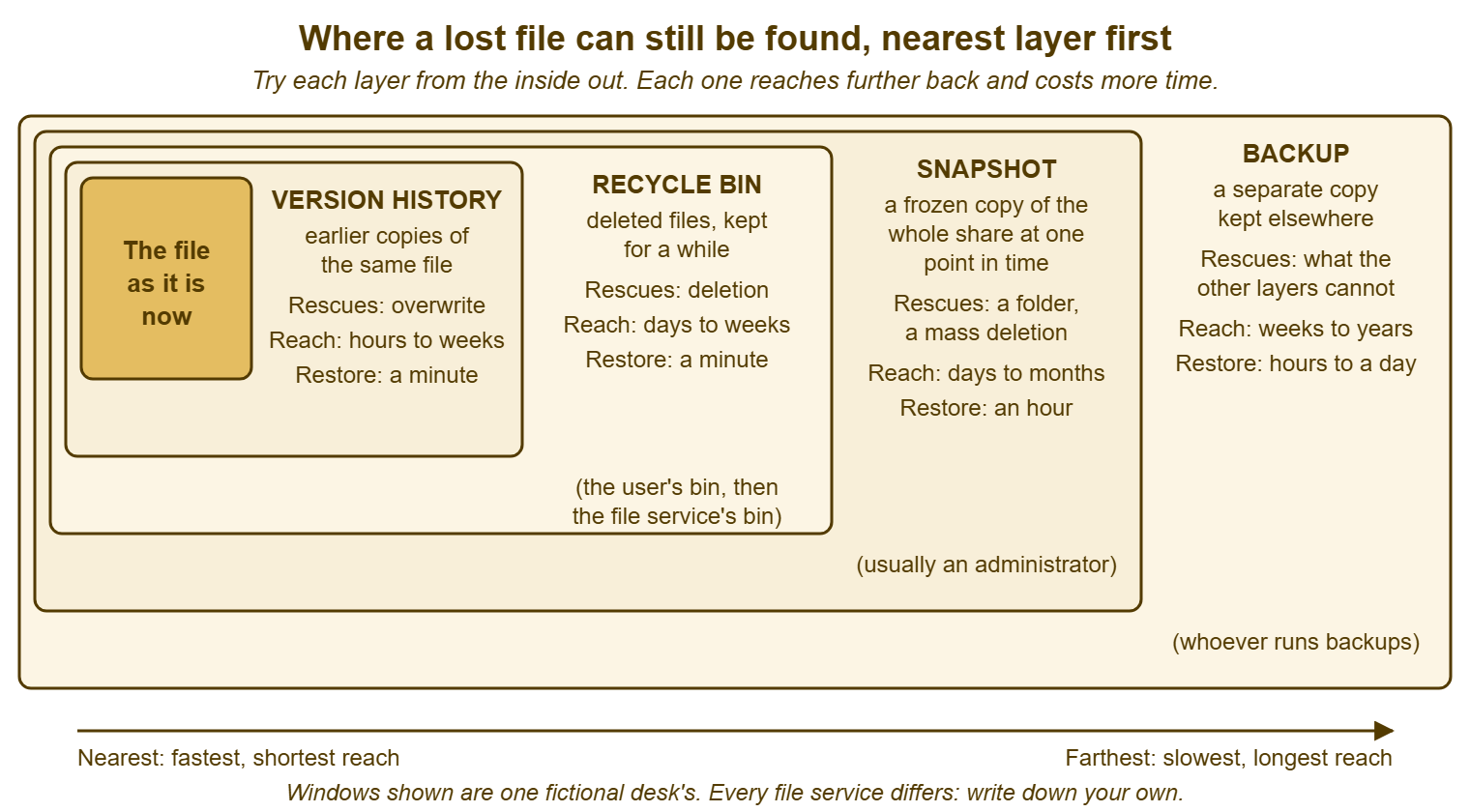
Not every file has all four layers. A file on a local disk that is not redirected has, at best, the local recycle bin and whatever the application autosaved. A file on an old file server may have a bin and a backup and nothing between. A file on a modern file service may have all four. Part of the desk's job, done once and written down, is to know which layers each place has. The workflow for a file is the workflow for its place. The table later in this article is the shape of that page.
Layer One: Version History
Version history is the first place to look whenever the file still exists but is wrong. It is the first place to check even when the file does not exist. On many services the history survives for a while after the file is deleted. The file service keeps each saved version of a file as a separate copy. It is labelled with the time it was saved and often with who saved it. Open the file's history from the file itself, find the version from just before the damage, and restore it. On most services that means either "make this version the current one" or "download this version as a copy". Always take the copy. The reason is the rule of the side location, which has its own section below.
Version history is the layer that rescues the overwrite, the case no other layer handles well. A spreadsheet saved over with a blank template at 15:40 has a 15:20 version in its history and a last-night version in the backup. Only one of those has the afternoon's work in it. Version history also rescues the slow damage: the document that somebody has been deleting paragraphs from for a week. In that case, the backup from last night is already wrong and the version from eight days ago is the one wanted. The whole case for this layer, and the places that lack it, is in Versioning Saves More Than Backups Do. Here it is enough to check version history first and check it on the folder as well as the file, since some services version folders too.
The limits are the window and the place. Version history reaches back a fixed number of versions or a fixed time, and anything older has gone. It exists on the file service and on document services. It does not exist on a local disk, a removable drive, or most older file servers, however hard you look. Marcus checked the Voids folder's history and found nothing, which told him two things. The folder was deleted rather than damaged, and he was now at layer two.
Layer Two: The Recycle Bin
The recycle bin is where deleted files wait, and the first thing to know about it is that there is usually more than one. The requester's computer has a bin for files deleted from the local disk. The file service has a bin for files deleted from shares, which the requester can usually see. Many services keep a second bin behind it that only an administrator can reach, holding things emptied from the first. A sync client may have a bin of its own on the cloud side. "I checked the recycle bin" from a requester means the first of these. Before reporting that a file is not in the bin, the technician has checked every bin the file could have reached, and said which.
Each bin has a window, the length of time it keeps a file before discarding it for good. And the windows are set by the service and the administrator, not by the desk. Some bins also have a size limit, so that a large deletion pushes older items out early. Find out both for every bin the desk uses and write them down, in days, on the one page. When a requester says the file went three weeks ago and the bin keeps two, the answer is in the arithmetic before anybody looks. In that case, the ticket moves to layer three. When a requester says it went yesterday and it is not in any bin, something else happened, and the intake questions deserve a second pass.
Restoring from a bin is the one layer where "put it back where it was" is the default action the tool offers. It is still worth pausing. If the original location now contains a newer file with the same name, perhaps because the requester started again, restoring over it destroys the new work. Check the destination before restoring. If anything is there, restore to a side folder instead and let the requester choose. The bin was built for the simple case; the desk sees the other kind.
Layer Three: The Snapshot
A snapshot is a frozen picture of a whole share or volume as it was at one moment. It is taken by the file service on a schedule, perhaps hourly, perhaps nightly, and kept for a set time. It is not a copy of the file; it is a copy of the state of everything. That makes it the layer for the deleted folder, the mass deletion, and the "everything in this tree was fine on Friday" request. Where a bin brings back the one thing that was deleted, a snapshot brings back the way things were. A technician who can browse the snapshot from a week ago can walk into the folder as it stood and copy out exactly what is needed.
Snapshots are usually an administrator's tool. On many services the requester cannot see them at all; on some, a previous-versions view on the folder lets a user browse them. The desk should know which, and should know who holds the administrator access. A snapshot restore is often the first layer where the technician on the desk cannot act alone. Where the administrator is on another team, the ask is a ticket or a note. It includes the share, the folder path, the snapshot time wanted, and the side location to copy into. The discipline for asking another team well is the same as for any handoff outside the desk. The desk keeps the requester's ticket; the snapshot restore is a task inside it.
Choose the snapshot time from the intake answers. The target is the most recent snapshot taken before the damage and after the last known-good moment. And that is why the two times from question three matter: last seen whole, first noticed missing. Take a folder last seen whole on Friday evening and deleted some time over the following week. It is restored from the latest snapshot that still contains it. Find that by stepping back one snapshot at a time until the folder appears. Copy the folder out of that snapshot into a side location. Do not restore the whole share to that moment, which would undo everything everyone else did since. Snapshots make that possible, which is exactly why it needs saying. (Nobody has ever thanked a technician for rolling back their week.)
Marcus found that Ashgrove's file service kept nightly snapshots for a few months. He found that the administrator for the housing share was Lena on the infrastructure side. And he found that the Voids folder appeared, complete, in the snapshot from the Friday Hollie remembered. He asked Lena by note for a copy of that folder, from that snapshot, into a side folder he named. It took Lena twenty minutes when she got to it, and the ticket had reached the third layer without touching a backup.
Layer Four: The Backup
The backup is the farthest layer: a separate copy of the data, on different storage, often in a different building or a different service. It is made on a schedule and kept according to a retention plan. It exists for the day the file service itself is lost. It also serves as the last reach for a single file that has fallen through every other layer. Reaching it almost always means asking another person, waiting for a queue, and receiving a copy of a folder as it stood when the backup ran. That was probably the previous night, so the most recent day's work is missing by design. That is not a defect. It is the nature of the layer.
Ask for a backup restore with the same precision as a snapshot restore, and with more care about the time. Backups are taken less often and kept longer. State the share and path, and the date and time the copy should come from. State whether you want one file, one folder or a tree, and the side location it should land in. Say when the requester needs it and what for, honestly, because the backup team's queue is ordered by that. Record the time you asked. If the deadline is close, ask early and in parallel with the nearer layers, and cancel if the file turns up. The point is covered in the intake article and it is worth repeating here. A technician who discovers at the fourth layer that the restore takes a day has discovered it a day late.
Know your windows here too. Backups reach back further than anything else, but not forever, and the retention plan says how far. That might be a few weeks of nightly copies, a few months of weekly ones, a year or so of monthly ones. The detail is different at every organisation. A file last seen whole eight months ago may be in a monthly copy and nowhere else. That monthly copy holds the file as it was at the end of a month, not the day the requester has in mind. Explain that before the restore, not after. To the person waiting, "we got it back" and "we got back a version from the end of March" are different sentences.
And know what the backup covers. A backup is a list of places, and places not on the list are not in it. The local disks of laptops are rarely on it. A share that was created after the backup job was configured is sometimes not on it either, which nobody discovers until the day it matters. When a restore request comes back with "that path is not in the backup set", the ticket has crossed into When It Cannot Be Recovered. In that case, the gap in the set is the one thing to change afterwards.
| Layer | What it holds | What it rescues best | Who can reach it | What to ask for |
|---|---|---|---|---|
| Version history | Earlier saved copies of one file, beside the file | The overwrite; the file that is there but wrong; slow damage over days | The requester, the desk | Nothing; download the version wanted as a copy |
| Recycle bin | Deleted files, for a window; often two bins, user and administrator | The deleted file or small folder, inside the window | The requester for the first bin; the desk or an administrator for the second | Check every bin; restore to a side folder if the original spot is now occupied |
| Snapshot | The whole share as it stood at scheduled moments | The deleted folder; the mass deletion; "it was fine on Friday" | Usually an administrator; sometimes browsable by users | Share, path, snapshot time, side location; one folder, not the whole share |
| Backup | A separate copy of listed places, on a schedule, kept to a retention plan | Everything the nearer layers no longer hold; the file service itself | Whoever runs backups | Share, path, date and time, scope, side location, deadline and reason; ask early if the deadline is close |
Restore to a Side Location, Never Over the Top
Whatever layer the copy comes from, it lands beside the original, in a folder the requester can see and the technician has named. It never lands on top of the original. The reason is that the technician does not know, and cannot know, whether the copy is right. The version chosen may be older than the requester wanted. The folder from the snapshot may be missing the three files that were added after it was taken. The original location may now hold something newer. That might be the requester's rebuild, a colleague's edits, a file with the same name that is a different document entirely. Restoring over the top replaces what is there with a guess. When the guess is wrong, the thing that was there is now the thing that is lost, and there is no layer for that.
The side location is a folder next to the original, named so that nobody mistakes it for live data. It uses the original name with a suffix such as "restored" and the date of the copy it came from. Put the recovered files in it, and tell the requester where it is and which moment it represents. And let them open it, compare it with whatever is in the original place, and decide what to keep. Moving the right files into the right place is a two-minute job the requester can do, or the technician can do once the requester has chosen. The choosing is the requester's, because only they know what the file should contain.
This rule costs almost nothing and it is the one that technicians drop first. That is usually under time pressure and usually with the words "it's clearly the right one". Do not restore over the top. Not for a single file. Not when the requester asks you to. Not at ten to two with the board paper due at two. If the side copy is right, it takes a minute to move; if it is wrong, nothing has been destroyed finding out. The whole restore workflow is built on this one habit, and the war story below is what happens without it.
Remember: visit the layers nearest first, version history, recycle bin, snapshot, backup. And put every recovered copy in a side folder named with the moment it came from. The requester compares and chooses. Nothing is ever restored over the top.
Confirming With the Requester
The restore is not done when the files land in the side folder. It is done when the requester has opened them and said they are right. The ticket stays open and owned until then. Send a short message that says where the copy is, which moment it represents, what to check and what to do if it is wrong. "I have put a copy of the Voids inspections folder from the Friday the 14th snapshot at Housing, Voids inspections restored 14th. Please open the tracking spreadsheet and a couple of the photographs and check they are what you expect. Then move the folder back into place, or tell me and I will. If anything is missing, say what, and I will look at the next layer." Specific, checkable, and it ends with the way back.
Ask the requester to look at the newest thing they remember, not the oldest. A folder that contains the files from last month but not the three from last week looks complete to a glance and is not. "Check that the inspection you did on the Thursday is there" is a better instruction than "check it looks right". It tests the edge of the copy. Where the requester finds a gap, the ticket goes back a layer, or forward one, with the gap written in. For example, the folder from the snapshot lacks Thursday, so the Thursday files are sought in the bin or in version history on their own.
Where the requester does not reply, chase once, then resolve the ticket with the side folder still in place and a note saying so. Leave the way back open. In many tools a reply from the requester to a resolved ticket reopens it, and QuerySolv does this from whatever channel the reply comes by. That way, "actually, the Thursday files are missing" lands on the ticket with its history rather than starting a new one. The side folder stays until the requester has moved what they need and said so. The general rule for closing without a confirmation is in User Confirmation Without Chasing Forever. What the desk does not do is tidy the side folder away on day three because it looked done.
The Note That Records What Was Restored From Where
The closing note on a recovery ticket records what was restored, from which layer, from which moment, and into which location. It also records who restored it and whether the requester confirmed it. And this note matters more on a recovery ticket than on almost any other. It matters because the same requester will be back in three months with a similar loss. And the next technician needs to know which layer worked last time. It matters because the count of restores by layer is how the desk learns which protections are earning their keep. That is the subject of Measuring Recovery Requests. And it matters because every restore is, quietly, a test of the backup or snapshot system. An auditor who asks "when did you last prove the backups work" deserves a list of tickets rather than a shrug.
Write the note from the layers outward, including the ones that found nothing. "Version history: none on folder. User bin: empty. Service bin: beyond window. Snapshot: found in nightly from the 14th; copied by Lena to Housing, Voids inspections restored 14th, at 14:50. Requester confirmed complete, including the Thursday inspection, at 15:20, and moved it back herself. Backup not needed." That is five lines, and a stranger could repeat the rescue from it. The craft of a resolution note that is still useful a year on is in Resolution Notes Worth Reading Later. The recovery ticket is the clearest case for it.
Keep the request for the snapshot or backup restore, and the reply to it, inside the same ticket, as notes or as a linked task. Do not keep them in a separate e-mail thread between technicians. The ticket then holds the whole story, from the intake answers through each layer to the confirmation. Anyone can see how long each step took and who was waiting on whom. If you run QuerySolv, the complete event history on the ticket already keeps that sequence. In that case, the record is a matter of writing the notes there and not somewhere else. In any tool, the test is whether the ticket alone would let a new technician explain to the requester's manager what happened and when.
A Short War Story: The Clean Copy at Meridian Parts
At Meridian Parts, a buyer called Ravi reported that a tab had vanished from the supplier pricing workbook on the procurement share. A technician called Dev had been shown the backup console the week before. He asked the backup team for the previous night's copy of the workbook and, when it arrived, restored it straight over the live file. He did that because the ticket said "urgent" and the copy was, he reasoned, the clean one. The copy did have the missing tab. It did not have the two days of price updates that Ravi and two colleagues had entered into the other tabs. They had entered those updates since the night the backup was taken, while waiting for the desk. Those two days of work were now gone with no layer left to find them in. That was because the live file's version history had been replaced along with the file. Three people spent the better part of two days re-entering prices from supplier e-mails. A purchase order went out at an old price in the meantime. Dev spent an uncomfortable hour with the procurement manager explaining that the backup had worked perfectly. The lesson was the one rule of the workflow. The recovered copy goes beside the original, the requester compares, and nothing is ever restored over the top.
The Restore Record
The record below is kept on the ticket for every restore that goes past the quick wins. It is filled in as the layers are visited rather than reconstructed afterwards. Section A fixes the target, so that every layer is checked against the same moment. Section B is one line per layer, in order, with the result of each, including the ones that found nothing. Section C is the side location and the confirmation. Its last two lines are the ones a future technician and a future auditor will read. Keep it as an internal note; the requester gets the short confirmation message, not the record.
RESTORE RECORD — ONE PER RESTORE, KEPT ON THE TICKET
Ticket: ________   Requester: ______________   Technician: ______________
Intake complete and quick wins exhausted at: ____/____ ____:____

A. THE TARGET
   File or folder: ______________________________________________
   Original path:  ______________________________________________
   Target state (last seen whole): ____/____ ____:____
   Damage window (last whole -> first noticed): ____/____ to ____/____
   Deadline and reason: ____/____ ____:____  ______________________

B. THE LAYERS, NEAREST FIRST (one line each; "none" is a result)
   1. Version history on file / folder ..... checked ____:____  result: ______________
   2. Recycle bin: user's ................... checked ____:____  result: ______________
      Recycle bin: service's / admin's ...... checked ____:____  result: ______________
   3. Snapshot: time chosen ____/____ ____:____  asked of: __________ at ____:____
      result: ______________  received ____:____
   4. Backup: copy from ____/____ ____:____  asked of: __________ at ____:____
      scope: file / folder / tree   result: ______________  received ____:____
   Asked early because of deadline: yes / no   Cancelled: yes / no

C. SIDE LOCATION AND CONFIRMATION
   Restored to: ______________________________________ (never the original path)
   Copy represents the state at: ____/____ ____:____
   Requester told at ____:____ what to check: ______________________
   Requester confirmed complete / partial / wrong at ____:____
   Gaps found and where sought next: ______________________________
   Moved into place by: requester / technician at ____:____
   Side folder removed at ____:____ (only after confirmation)
   Restored from layer: version history / bin / snapshot / backup / not recovered
Hollie opened the side folder at 15:05, checked the spreadsheet and the Thursday inspection photographs, found everything, and moved the folder back herself. Marcus wrote the five-line note, recorded "snapshot" as the layer, and resolved the ticket at 15:25. The side folder was still in place for a few days in case anything had been missed. Nothing was. The backup had not been asked for anything. The folder had taken four hours to come back and most of that was waiting. And the record says exactly which layer earned its keep, which is what records are for.
Frequently Asked Questions
Which layer do I start with if the file still exists but is wrong?
The requester insists I restore over the live file because the live one is useless. Can I?
How do I pick the right snapshot or backup time?
The backup team says the folder is not in the backup set. What now?
How long should the side folder stay after the requester confirms?
Can the requester do any of this themselves?
From the QuerySolv team: we build self-hosted help desk software for Windows. QuerySolv runs as one Windows service on your own network. It takes requests by web form, e-mail, live chat, social messages and REST API. It is licensed once per installation rather than per agent per month. The free trial runs the full product for 30 days.