
Can't Connect: The VPN Diagnostic Order, Cheapest First
Tuesday, 07:50, at Redbrook Engineering. Sam, a site engineer, phones the desk from a hotel near a client's site. "The VPN says connecting, then it gives up. I need the drawings by nine." Jo has been on the desk for two months. She was taught, by the technician she replaced, that the first thing to try with a VPN is to reinstall the client. Reinstalling the client over hotel wireless takes about twenty minutes and requires Sam to type an administrator password he does not have. It fixes a cause that, at this desk, accounts for roughly one cannot-connect ticket in twenty. It is a fine thing to try eighth. Jo has it first, because nobody ever wrote down what came before it.
The diagnostic order for a VPN that will not connect is six checks, run cheapest first. Cheap means the least time, the least disruption to the user, and the least chance of making anything worse. The order works because a VPN connection is built in layers, each resting on the one below it. First comes the internet connection, then the client on the laptop, then the password, then the second factor. Next comes the network the laptop happens to be on, and finally the gateway at the office that everyone shares. A fault in a lower layer makes every layer above it look broken, so you check from the bottom and stop at the first one that explains the symptom. This article is part of our VPN & Remote Access Tickets series. This article is the procedure for the biggest category in it.
This article covers why cheapest first, then the six steps in turn. Is the internet itself up? Is the client running and current? Is the password current? Is the second factor working? Is it this network? Is it everyone? Then come what to do past step six, Sam's ticket worked through the ladder, a short war story, and the can't-connect card to copy.
Why Cheapest First
Every check has a cost, and the costs are wildly uneven. Asking the user to open a public website takes ten seconds and changes nothing. Asking them to sign in to webmail with the same password takes thirty seconds and changes nothing. Switching the laptop to the phone's hotspot takes two minutes and changes nothing that cannot be switched back. Reinstalling the client takes twenty minutes, needs rights the user may not have, and leaves the laptop in a state the desk has to verify. Rebuilding the user's profile takes an hour and loses things. The order below is simply the costs sorted, with the one constraint that a check must be able to tell you something on its own.
The second principle is to stop at the first step that explains the fault. A user whose home internet is down has a VPN that cannot connect, and nothing in steps two to six will change that. In that case, the ticket is finished at step one, with a different cause from the one on the subject line. A user whose password expired on Friday is finished at step three. Running on past the step that explained the fault is the most common way these tickets grow from ten minutes to an hour. That is because every later step is more expensive and none of them can fix a cause that lives below. The ladder is climbed from the bottom. Nobody is awarded anything for reaching the top.
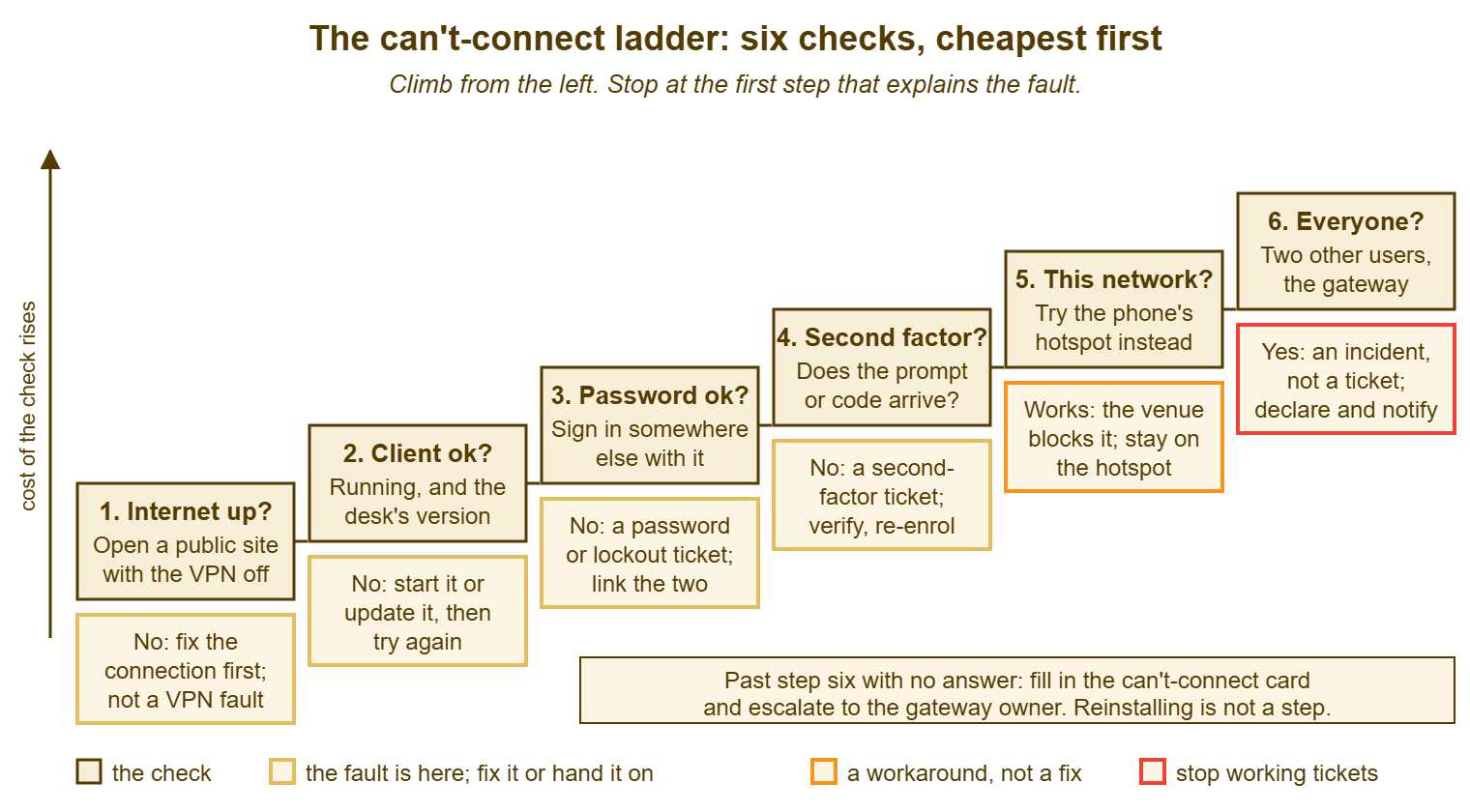
The picture below draws the six steps as a staircase, with the cheapest check at the bottom left and the dearest at the top right. Under each step is what to do when that step explains the fault: fix it, hand it to the owner of that layer, or, at step six, stop working tickets and declare an incident. The bottom note says what happens when all six pass and the fault is still there, which is rarer than it feels.
Step One: Is the Internet Itself Up?
The first check is whether the laptop can reach the internet at all without the tunnel. That is because a VPN is built on top of an internet connection and cannot exist without one. Ask the user to turn the VPN off, open a browser, and load a public website they do not normally visit. That way, the browser cannot show them a saved copy. If the page loads, the internet is up and the fault is above this layer. If it does not, the ticket is not a VPN ticket. It is a home internet ticket wearing a VPN subject line. The honest conversation about what the desk can and cannot do for a home connection is in The Home Network Variable.
Two things make this check slightly less simple than it sounds. The first is the captive portal, which is the sign-in page that a hotel, café or airport network puts in front of every connection until the user has accepted its terms. A laptop on such a network has wireless signal, no internet, and a VPN client that will spin forever. The public website test is what reveals it, because the browser shows the sign-in page instead of the site. Sam's hotel had one. The second is the laptop that has internet through the wireless but has quietly connected to a neighbour's network, a printer's setup network, or a guest network with no route out. The public site test catches those too.
Write the answer down in one line: "public site loads with VPN off: yes" or "no, shows hotel sign-in page". The step costs ten seconds and resolves a quarter of the category at the fictional desk in the categories article, which is a return no other ten seconds on the desk can match. The user, it turns out, often already knows. They simply did not think the desk would believe them.
Step Two: Is the Client Running and Current?
The second check is whether the VPN client, the program that builds the tunnel, is actually running and is the version the desk expects. "Running" is not the same as "installed". The client has a background part that starts with the laptop and a window the user sees, and either can have stopped. The classic cause is an operating system update over the weekend that left the client's background part stopped, so that the window opens and the connect button does nothing. The fix is to close the client fully and start it again. If that does not restore it, restart the laptop, which brings the background part up with everything else. Restarting the laptop is cheap, embarrassing to suggest, and right more often than anyone likes.
"Current" means the version the desk has published as the one it supports, whatever that is this quarter. The desk should know it without looking it up. A client that has fallen behind can be refused by a gateway that has been updated, can fail to trust a renewed certificate, and can simply stop working after an operating system update. Ask the user to read the version from the client's about screen and compare it with the one on the desk's setup page. If it is behind, the fix is to update it, which the setup guide should make a two-minute job. Why clients fall behind, and why a renewal is also a client-update project, is in Certificates, Expiry and the Morning Everyone Fails at Once.
This step is also where the error message earns its keep. A client that says it cannot reach the gateway, with the internet up, is pointing at step five or six. A client that asks for credentials and refuses them is pointing at step three or four. A client that says nothing at all and spins is usually step five. Get the exact wording into the ticket here, because the message is the one piece of evidence that the client is offering for free.
Step Three: Is the Password Current?
The third check is whether the password the client is sending is the one the directory currently holds. The cheapest way to find out is to use the same password somewhere else: webmail, the intranet from a phone, anything that asks for the same account. If it works there and not in the client, the client has a stale copy saved from before the last change. In that case, the fix is to make it forget the saved password and ask again. If it fails everywhere, the password has expired, or the account is locked after too many tries, or it has been disabled. In that case, the ticket has become a password ticket with a VPN subject line.
The stale saved password deserves a paragraph of its own, because it is the single most common cause of a VPN account locking itself out. The lockout then looks like a new fault. A client that retries a wrong password every few minutes, on a laptop whose owner changed their password on Friday, will lock the account by Monday breakfast with no human involved. The pattern, its diagnosis and the way to stop it recurring are in The Lockout That Keeps Coming Back. The VPN client is the first place that article tells you to look. The password series owns the reset and the verification that must come before it; this step only decides that the ticket belongs there.
Look in the desk's own history before asking the user anything. A password reset earlier the same day, raised by the same person, explains a cannot-connect ticket in the afternoon without a single question. Linking the two tickets makes the connection obvious to the next reader. If you run QuerySolv, the event history on the morning's reset ticket shows when the password changed. In that setup, the afternoon's ticket can be linked to it so that the pair reads as one story. Any tool with a search by requester gets you most of the way. The step costs thirty seconds, or nothing if you looked first.
Step Four: Is the Second Factor Working?
The fourth check is whether the second factor, the prompt on the phone or the six-digit code from the authenticator app, is arriving and being accepted. Ask two questions: did the prompt or code arrive, and was it accepted? A prompt that never arrives is a phone with no signal, a phone in another room, an app that was never moved to the new phone, or an app whose notifications are switched off. A code that is always refused is usually a phone whose clock has drifted. That is because the codes are computed from the time and a phone two minutes out produces codes the gateway has already forgotten. A prompt that arrives and is approved and the client still fails is not this step.
The new phone is the case that turns a thirty-second check into a ticket of its own. A user who moved to a new phone at the weekend and did not re-enrol the authenticator before the old one was wiped has no second factor at all. The desk cannot simply give them one over the phone, because handing a second factor to whoever asks is how the second factor stops being one. That ticket, its verification standard and its runbook are the whole subject of Second-Factor Problems. Here, the step ends with "second factor not arriving: new phone, not yet re-enrolled" in the note, and the ticket goes down that path.
Resist the urge to turn the second factor off "just to get them working". It is the easiest thing to do, and the user will be grateful. It removes the control that the whole arrangement exists to provide, for one account, at the moment the account is most likely to be under pressure. If the desk has the power to do that at all, it is a power that belongs in a runbook with a verification step and a second person, not in a Tuesday morning phone call.
Step Five: Is It This Network?
The fifth check is whether the network the laptop is sitting on is the thing refusing the tunnel. The decider is the phone's hotspot. Many hotel, café, conference and guest networks block the kind of traffic a VPN uses, either deliberately or as a side effect of how they are built. A laptop on such a network has internet, a working client, a good password and a working second factor, and still cannot connect. Ask the user to switch the laptop to their phone's hotspot and try again. If it connects over the hotspot, the venue is the cause and the hotspot is the workaround. In that case, the venue's name goes on the desk's known-issue list so the next person who travels there is told in advance.
The captive portal from step one reappears here in a subtler form. Some venues let the first website through after sign-in and then expire the sign-in after an hour. So the user who connected fine at breakfast cannot connect at ten. The public site test, repeated, catches it. So does a home router that has been given a setting to block tunnels. That happens when a household has turned on a parental control or a security feature without knowing what it covers. The desk cannot fix that router and should not try. But it can tell the user what to ask of it, which the home-network article covers.
This step costs two minutes and is the one that most often ends a ticket from a traveller. It is also the step the reinstall reflex skips straight past, which is how a desk ends up reinstalling a working client on hotel wireless, failing, and concluding the laptop is faulty. The laptop was fine. The hotel had opinions.
Step Six: Is It Everyone?
The sixth check is whether the fault is the gateway, the device at the office that every tunnel ends at. The test is whether anybody else can connect right now. Two sources answer it. The first is the queue: three cannot-connect tickets in five minutes, with the same wording, from people in different places, is the gateway until proven otherwise. The second is a test the desk can run itself: a laptop at the desk, or at home, on a known-good connection with a known-good account, that connects or does not. A desk that keeps one such laptop ready, or one technician who can test from home in a minute, saves itself the hardest twenty minutes of the morning.
If it is everyone, stop working tickets one at a time. The fault is one fault with many reports, and the right shape is an incident. There is one ticket for the gateway, with the reports linked to it. A first notice goes to everyone remote in five minutes saying what is known and when the next update will come. The gateway owner works the cause while the desk works the message. Declaring an incident and the first fifteen minutes are the subject of Declaring an Incident and the First Fifteen Minutes. The first notice itself, what it says and how fast it must go, is in The First Notice: Say Something in Five Minutes. The desk's contribution to a gateway outage is not the fix. It is that nobody remote sits wondering for an hour whether to reinstall something.
If it is not everyone, the six steps have all passed and the fault is still there, which is the rare case. In that case, it goes to the gateway owner as an escalation with the card below filled in. The card records everything the user tried, in order, with the result of each. That card is what turns "VPN not working, please look" into a ticket that someone can act on from the first line. The gateway owner can read six answers in a minute. They cannot read a shrug.
Past Step Six
Past step six, three things remain, and they are the expensive ones that the order was designed to postpone. The first is the client's own log, which most clients can show or save, and which the gateway owner will ask for. Attach it to the ticket. The second is reinstalling the client, which fixes a damaged installation and little else, and which has earned its place only now, with the six checks done. The third is the account on the gateway side. The questions are whether this user is in the group that is allowed to connect, and whether their access has an end date that passed. Another is whether a setting on the gateway was changed yesterday for everyone and has caught one person. Those three things—the log, the reinstall and the account—belong to the gateway owner, with the card in hand, and the desk's job is to have made the card complete.
Set an expectation with the user before handing it on. "I have ruled out the six usual causes; it has gone to the person who runs the gateway, and you will hear from us by eleven. In the meantime, the drawings folder is reachable from the office network if a colleague can send them." The user can plan around a time; they cannot plan around "it's with the network team". The expectation habit is the subject of the managing-expectations series. The VPN ticket is where it is most tested, because the user is usually somewhere they cannot easily be reached.
Remember: climb the ladder from the bottom and stop at the first step that explains the fault. Internet up with the VPN off; client running and current; password works elsewhere; second factor arrives and is accepted; connects over the phone's hotspot; anyone else affected. Reinstalling the client is not a step. It is what you do after all six have passed.
Sam's Ticket, Worked Through
Here is Sam's ticket run up the ladder, with the time each step took and what it showed. Jo asked the step-one question and Sam, with the VPN off, got the hotel's sign-in page in his browser. He accepted the terms, loaded a public site, and the internet was up. The client was running and matched the version on the desk's page. His password opened webmail from his phone. The prompt arrived and he approved it. Then Jo asked him to switch the laptop to his phone's hotspot, and the tunnel came up on the first attempt. The hotel's guest network was blocking it; the hotspot was the workaround for the day; the hotel went on the known-issue list. Eleven minutes, including the time Sam spent finding the hotspot setting on his phone. The drawings were open by 08:10.
| Step | The check | Cost | Sam's answer | Outcome |
|---|---|---|---|---|
| 1 | Public website loads with the VPN off? | 10 seconds | Sign-in page first; then yes | Internet up; captive portal noted |
| 2 | Client running, version matches the desk's page? | 30 seconds | Yes, both | Client fine |
| 3 | Same password works for webmail? | 30 seconds | Yes | Password current |
| 4 | Second-factor prompt arrives and is accepted? | 30 seconds | Yes | Second factor fine |
| 5 | Connects over the phone's hotspot? | 2 minutes | Yes, first attempt | The hotel network blocks it; hotspot is the workaround |
| 6 | Anyone else affected? | not reached |
Notice what did not happen. Nobody reinstalled anything. Nobody asked Sam for an administrator password. Nobody told him the laptop was faulty. The ticket closed with the cause, the workaround and the hotel's name. That is a note that the next traveller's technician will find in a search before the next traveller has finished describing the problem.
A Short War Story: Two Hours at Harbourview Clinic
Maya, a locum doctor at Harbourview Clinic, phoned the desk at four on a Thursday because the VPN would not connect from home and her evening telephone clinic started at five. Tom, who had a reputation for fixing VPNs, reinstalled the client, which did not help. He reinstalled it again with a different installer, which did not help. He then rebuilt her profile on the laptop, which took most of an hour and did not help either. At ten to six, a colleague searching the queue for Maya's name found the morning's ticket. It showed that the desk had reset her password after a lockout at nine. The client had been sending the old one all afternoon. The evening clinic started forty minutes late, and eleven patients were rebooked. Tom had spent two hours on a thirty-second check that was third on the ladder and first in the desk's own records. The lesson the desk wrote down was that the order exists precisely so that a reputation for fixing VPNs is never needed.
The Can't-Connect Card
The card below is the first note on every cannot-connect ticket, filled in as the steps are run. It goes with the ticket if the ticket is escalated. Fill in the top line from the first question, then each step in order with its answer, and stop at the first step that explains the fault. The steps below it stay blank, which is itself information. The bottom block is what the gateway owner needs when all six have passed. Keep it to one screen, keep it joke-free, and keep the user's exact words where the card asks for them.
VPN CAN'T-CONNECT CARD — ONE SCREEN
Ticket: ________   Requester: ______________   Where they are: office / home / hotel / client site / other: ________
Exact message on the client (or "none, it spins"): ______________________________________________
Anyone else reporting the same in the last hour?  yes / no      When did it last work? ______________

STEP 1  Internet up with the VPN off?
        Public site loads: yes / no / sign-in page first   Note: __________________________________
        If no: not a VPN fault. Home connection ticket. Stop here.

STEP 2  Client running and current?
        Background part running: yes / no   Version matches desk page: yes / no   Restarted laptop: yes / no
        If no: start or update it, retry. Stop here if it connects.

STEP 3  Password current?
        Same password works for webmail: yes / no   Reset or lockout ticket today: yes / no, ticket ____
        If no: password ticket. Link it. Stop here.

STEP 4  Second factor working?
        Prompt or code arrives: yes / no   Accepted: yes / no   New or lost phone: yes / no
        If no: second-factor ticket. Verify identity before any re-enrolment. Stop here.

STEP 5  This network?
        Connects over the phone's hotspot: yes / no   Venue name: ______________________
        If yes: venue blocks it. Hotspot is the workaround. Add venue to known-issue list. Stop here.

STEP 6  Everyone?
        Other users affected: yes / no   Desk test connection works: yes / no
        If yes: incident. One ticket, link the rest, first notice out in five minutes. Stop here.

ALL SIX PASSED — ESCALATE TO THE GATEWAY OWNER WITH:
        [ ] this card, complete        [ ] the client's log, attached
        [ ] the account name and the group it should be in
        [ ] the time promised to the requester: ________
Jo kept the card in the desk's internal notes and used it on every cannot-connect ticket for a month. The average time on the category fell from about forty minutes to about fifteen, by her count. The reinstall count fell to two, both of which were step seven and both of which were right. The technician she replaced had not been wrong about reinstalling. He had only been wrong about when.
Frequently Asked Questions
The user is on the phone and cannot do the checks while talking. What then?
The client connects but immediately disconnects. Is that this article?
Why not just reinstall the client first? It fixes a lot of things.
How do I know whether it is everyone if I am the only one on the desk?
The hotspot test worked, so the hotel is blocking it. What do I tell the user?
All six passed and the gateway owner is out until tomorrow. What can the desk still do?
From the QuerySolv team: we build self-hosted help desk software for Windows. QuerySolv runs as one Windows service on your own network. It takes requests by web form, e-mail, live chat, social messages and REST API. It is licensed once per installation rather than per agent per month. The free trial runs the full product for 30 days.