
Docks, Cables and the Things That Break First
Monday, 08:35, at Bellweather Logistics. Sam has been on the desk for forty minutes and has three tickets about docks. That is one more than usual for a Monday and two more than he would like. "My second monitor is black." "My laptop isn't charging when it's on the dock." "The dock stopped working after I plugged my phone into it." Three users on two floors, three different docks, and in Sam's experience somewhere between none and one of the three docks is actually broken. He picks up the bag he keeps under the desk. It holds two known-good cables, one known-good dock, and a monitor cable that has never once been the problem but comes along anyway. He goes upstairs.
A dock, or docking station, is the box on the desk that connects a laptop to its monitors, keyboard, mouse, network and power through one cable. That way, the person arriving plugs in one thing and the person leaving unplugs one thing. It is the top peripheral ticket on most desks because it sits in the middle of a chain of five things that can each fail. Whatever fails, the symptom lands on the dock. This article is part of our Peripherals & Equipment Requests series. The laptop itself, and the order in which to suspect its parts, belongs to The Diagnostic Order. And this article is about everything between the laptop and the wall.
It covers why the dock gets the blame and the chain, drawn as a picture. Next come the cable that is the real problem, the port that is worn, and firmware in plain words. Then it covers the swap-first rule, the spares shelf and the test bin, and the three symptoms that are usually not the dock. It finishes with writing the card, a short war story, and the dock troubleshooting card to copy.
Why the Dock Gets the Blame
The dock is blamed because it is the junction, and a junction is where every fault in the chain becomes visible. A worn cable between the laptop and the dock shows up as a dock that "keeps disconnecting". A monitor whose input has been switched to the wrong source shows up as a dock that "won't drive the second screen". A laptop port with a loose socket shows up as a dock that "only works if I hold the cable". A power brick that has quietly failed shows up as a dock that "doesn't charge any more". The user is not wrong to say the dock; from where they sit, the dock is the only thing in the chain they can see. The technician's job is to see the chain.
The chain has five links. First are the laptop and its port, then the single cable between laptop and dock. Next come the dock itself with its own power brick and the cables from the dock to the monitors. The last link is the monitors and smaller peripherals at the end. Any of the five can produce almost any dock symptom. That is why "the dock is broken" is a hypothesis rather than a diagnosis. It is also why the fix is so often a cable costing a fraction of the dock it was blamed for. The dock does fail. It fails less often than the things on either side of it, and it is replaced far more often than it fails.
Most desks learn this slowly and expensively, by sending docks back to the supplier that the supplier tests and returns with "no fault found". A desk that keeps its tickets by device will see the pattern within a quarter. A dock model with a high ticket count but a low confirmed-fault count is a model with a cable problem, a port problem or a firmware problem. And the method for reading that is in Device and Model Hotspots. The dock has been the defendant in a great many cases it did not commit.
The Chain, Drawn
The picture below draws the chain the way a technician should hold it in their head. There is the laptop on the left, the one cable, and the dock with its power brick beneath. The three branches to the right are for the monitors, the small peripherals and the network. The amber numbers are the swap order, and the order is not arbitrary. It goes from the cheapest and most likely fault to the dearest and least likely. One, reseat everything and power-cycle the dock, because a dock that has been on for three weeks has sometimes simply lost its place. Two, swap the laptop-to-dock cable. Three, swap the video cable. Four, swap in a known-good dock. Five, put a known-good laptop on the suspect dock. That is the only step that tells you the fault is the laptop rather than anything on the desk.
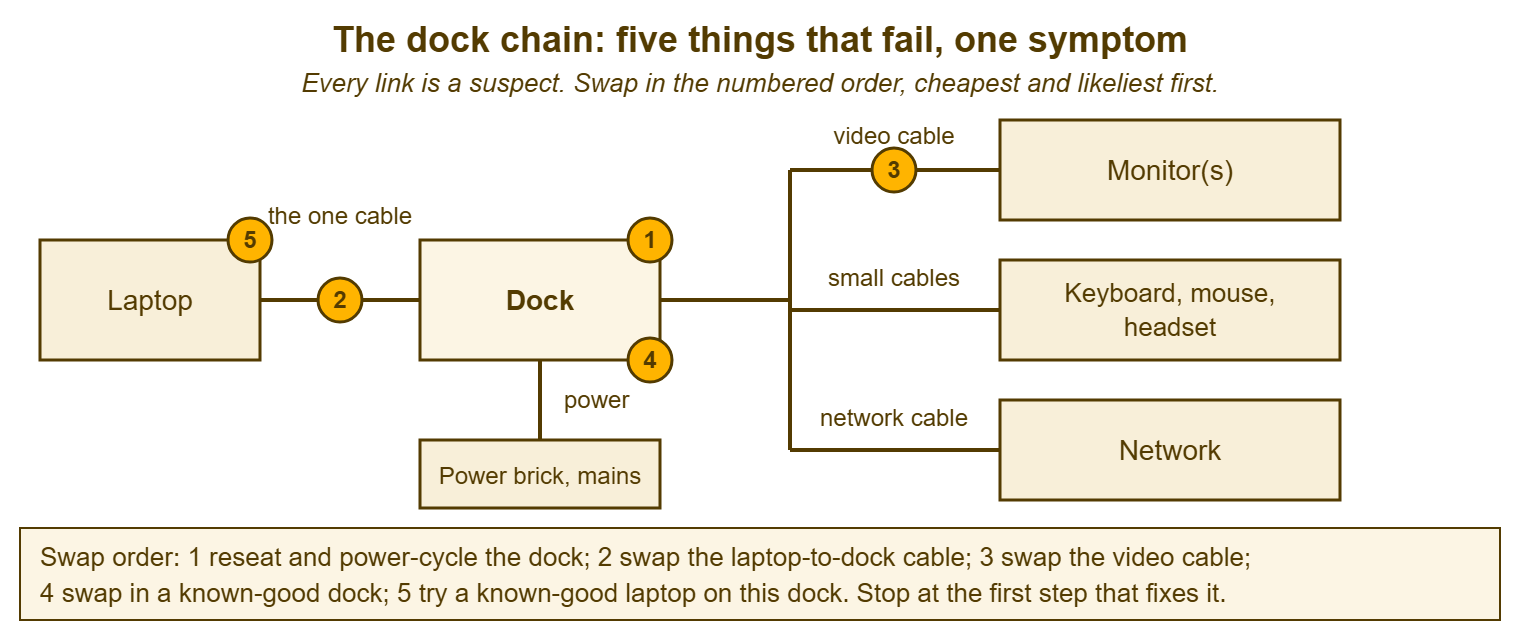
The order also says something about where to stop. A fault that goes away at step two is a cable fault. And the dock, which was about to be replaced, goes back to doing its job. A fault that survives step four is not a dock fault, however it looked. In that case, a known-good dock on the same laptop leaves the same symptom. The ticket changes category from peripheral to laptop at that moment. The technician may skip to step four because the known-good dock is in the bag and swapping it is quick. They fix the fault often enough to feel vindicated and send a working dock to the test bin every time. That is how a desk ends up with a test bin full of docks that are fine.
The Cable Is the Real Problem
The single cable between laptop and dock carries three things at once: power to charge the laptop, video to the monitors and data to everything else. Not every cable that fits the socket can carry all three. The connector most current laptops use is small, oval and reversible. It looks identical on a cable that can only charge a phone and a cable that can carry data but not enough power. It also looks identical on the cable that came in the box with the dock and can do all of it. The one from the drawer fits. It fits perfectly. It then charges the laptop slowly, drops the second monitor under load, or does nothing at all, and the user reports a dock fault.
The rule is that the dock is issued with the cable that came with it. The cable is labelled with the dock's tag, and the desk stocks that cable and no other for that purpose. A user may need a longer cable because their desk is laid out oddly. In that case, the desk buys the one the dock maker specifies for that dock and labels it the same way. The cable that is "the same" is the single most expensive object on most desks, measured in technician hours per unit of plastic. A labelled cable costs the same as an unlabelled one and ends about a third of dock tickets before they are raised.
Cables also wear. The one cable is plugged and unplugged twice a day by someone who is thinking about something else. After a year the connector is loose, the strain relief has cracked, or one of the tiny contacts inside has worn. And the cable carries video on Monday and not on Tuesday. The symptom of a worn cable is intermittence, and intermittence is the symptom technicians hate most, because the fault is not there when they arrive. Swap the cable first, every time, before looking at anything else. Keep the suspect cable out of the drawer and in the test bin, labelled with the ticket number. A cable that caused one intermittent fault has not finished.
The Port That Is Worn
The laptop's own port wears too, and it wears faster than the cable because it is the fixed half of the joint. The symptom is the one users describe most precisely: "it works if I hold the cable at an angle", "it works if I push it in hard", "it disconnects when I move the laptop". A port that needs holding is a port with a loose socket or a bent contact, and no cable or dock will fix it. The wobble test is the diagnosis. A known-good cable is put in the suspect port and gently moved side to side while the laptop is charging. A charging indicator that flickers is a port on its way out.
A worn port is a laptop repair, not a dock ticket. And the ticket should say so and be re-categorised the moment the wobble test fails. The decision about whether to repair the laptop, swap it for a spare or retire it belongs to Swap, Repair or Retire. The desk should resist the temptation to work around a worn port with a cable held in place by tape. Tape works for a week. It also means the laptop now fails in a meeting rather than at a desk, which is a worse place to fail.
Ports wear faster when the cable hangs with weight on it, when the laptop is pulled off the dock by the cable, and when the connector is inserted at an angle. None of that is the user's fault, and the desk should not say so. A laptop port is a small socket asked to survive several hundred insertions a year by people in a hurry. The desk can route the cable so it does not pull. It can tell new starters in the first-week briefing to pull the plug and not the cord. It can also keep a count of port repairs by laptop model, because a model with a weak port is a lemon with a specific complaint.
Firmware in Plain Words
Firmware is the small program that lives inside the dock itself and tells it how to talk to the laptop, the monitors and the power brick. The dock maker updates it from time to time to fix problems that nobody knew about when the dock was built. A dock may work perfectly with one laptop model and drop a monitor with another. Or it may have stopped behaving the week after the laptops received an operating system update. In either case, it is often a dock whose firmware is older than the thing it is talking to. Firmware does not wear out. It goes out of step.
The practical version is that the desk keeps every dock of the standard model on the same firmware. It applies the maker's update by whatever method the maker provides. It writes on the stock sheet which firmware the fleet is on. That way, a dock from the shelf is brought up to date before it is issued. Updating is a change, in the plain sense that it alters something that was working. On a desk that has agreed a lightweight change routine, it is done to one dock first. That dock is watched for a week, and then the update is rolled to the rest. A firmware update can fix the second-monitor problem on one laptop model and introduce a new one on the other. That is not unheard of, and finding it out on one desk is better than finding it out on sixty.
One standard dock model, which the second article in this series argues for on other grounds, is also the reason firmware stays manageable. Four models means four firmware tracks, four update methods and four ways for a dock to be out of step. No desk of three keeps four tracks straight. One model means one line on the stock sheet, and the line can be read.
The Swap-First Rule
The swap-first rule says that the technician swaps before they diagnose, and it exists because the user's hours matter more than the technician's curiosity. A user with a black second monitor is a user working at half width. The fastest way to get them back is to replace the suspect part with a known-good one and see if the fault goes. It is not to work out why the suspect part failed. The why is worth knowing. It is worth knowing later, at the desk, with the suspect part in the test bin and the user working. A technician who diagnoses at the user's desk is doing their own job in someone else's working day.
In practice the rule looks like Sam's bag. Known-good cable, known-good dock, known-good video cable, each labelled "known good, do not issue", carried to every dock ticket. The visit runs the numbered order. Reseat and power-cycle, then swap the cable, then swap the video cable, then swap the dock. If the fault is still there, the laptop goes to the desk and a loaner comes out. Each swap takes a minute. The whole visit, when the fault is a cable, takes five. In that case, the user has been interrupted for five minutes rather than for the forty it would have taken to prove it was the cable before replacing it.
The rule has one honest limit. A fault that is not present when the technician arrives cannot be swapped away in front of the user. There is nothing to watch go. For the intermittent fault the rule becomes: swap the cable anyway and leave the known-good dock in place for a week. In that case, ask the user to reply to the ticket the moment it recurs. A week of silence means the swap worked. A reply means the chain has moved on to the next link. And the ticket says exactly where the hunt is up to, which is more than most intermittent tickets can say.
Remember: the dock is the junction, not the fault; swap in order, cable first, before diagnosing anything. A fault that survives a known-good dock is the laptop. The suspect part goes to the test bin with the ticket number on it, never back on the shelf. And the fleet's docks stay on one firmware, written on the stock sheet.
The Spares Shelf and the Test Bin
The spares shelf holds two kinds of thing, and the labels matter more than the quantities. The first kind is the known-good set: a dock, two laptop-to-dock cables, a video cable and a power brick. All are tested, labelled "known good, do not issue", and used only for swapping during a visit. The second kind is ordinary stock, docks and cables waiting to be issued. The stock sheet counts and reorders these. The third article in this series, Peripheral Stock Management for a Small Desk, describes that stock. The known-good set is not stock. A known-good dock may be left on a user's desk at the end of a visit because it fixed the fault. In that case, the technician takes a dock from stock to be the new known-good one. They test it, label it, and write the move on the sheet. A known-good set that quietly becomes someone's dock is a bag with nothing in it.
The test bin is where suspect parts go, each with the ticket number on a label. And it is emptied on the monthly count day by a technician with a laptop, a monitor and twenty minutes. Each part is tried on a known-good chain. A cable that works after ten minutes of wiggling is still a suspect and goes to retire. A dock that behaves goes back to stock after a firmware check, with a note on the sheet that it has been returned once. A dock that has been returned twice is retired whatever the test says. Two confirmed faults on one unit is a lemon by any reasonable definition. The hour spent testing it a third time is an hour the desk does not have. The test bin is where the desk learns what actually broke, which is a different thing from what was replaced.
The Three Symptoms That Are Usually Not the Dock
"My second monitor is black" is, more often than not, the monitor. Its input has been switched to a source nothing is connected to, by a button on its edge that someone's elbow found. Or its own power lead has come loose at the back. Or the video cable from the dock has been plugged into the wrong socket on the monitor. The first check is the monitor's own menu and its input setting. The second is the cable at both ends, and only then the dock. A technician who starts at the dock will swap it, find the monitor still black, and discover the input button twenty minutes later than they might have.
"It isn't charging on the dock" is usually the power brick or the cable. The brick is the dock's own supply. When it fails, the dock may still pass video and data from the laptop's own battery. That makes the fault look like a charging problem rather than a power problem. Check that the brick's light is on, swap the one cable, and then swap the brick from the known-good set. The laptop that charges on its own charger but not on the dock has told you where the fault is not, which is most of a diagnosis.
"The dock stopped working when I plugged my phone in" is about power budget, in plain words. The dock has a fixed amount of power to share across its sockets. A phone that asks for a lot of it, plus two monitors, plus a laptop charging, can be more than the dock has to give. At that point, something drops. The fix is to charge the phone somewhere else, which is a sentence that has to be said kindly and will be said more than once. Occasionally the phone's cable or the phone itself has damaged the socket, and the socket is then a dock repair. But the first explanation is the common one. It is nobody's fault except the laws of physics, which have never once read a ticket.
Writing the Card
The dock troubleshooting card has two halves for two readers. The user half is three things to try before raising a ticket, written for someone who does not know what a dock is. Unplug the one cable and plug it back in. Press the power button on the dock for ten seconds and let go. And check the monitor's input setting. The technician half is the numbered swap order with the checks at each step. It also has the wobble test, the firmware line and the rule for what goes in the test bin. If you run QuerySolv, the user half is a knowledge base article visible to everyone and the technician half is one visible to agents only. That way, the two never get mixed and the user is never handed a step that assumes a bag of spares. Many tools can draw that line in some way; whatever yours does, the two halves live apart.
The card is also the record of what the desk believes about its dock model, and it changes when the beliefs do. Consider a new firmware line, a cable that turned out to be a second kind of wrong, or a monitor model whose input button is somewhere surprising. Each goes on the card the week it is learned, so that the next technician does not learn it again. The card is short. It is also the single most-opened article on most desks that have one, which says something about docks that this article has already said at length.
A Short War Story: The Cable Drawer at Meridian Parts
Meridian Parts had a desk of three, one standard dock, and a drawer of cables that had accumulated from every laptop, phone and dock the company had ever bought. All of them were the same shape at the end. Leo, the newest technician, counted at the end of a quarter. He found the desk had swapped eleven docks for "not driving the second monitor" and sent nine of them back to the supplier. The supplier returned all nine as no fault found. Leo then pulled the cable from each of the eleven desks and found that seven were phone cables from the drawer. They had been issued by a technician who had grabbed the nearest one that fitted. The quarter had cost about twenty hours of technician time, two weeks of supplier correspondence and nine docks that were not broken. And the users had each spent a week on one monitor waiting for a replacement that fixed nothing. Leo labelled the dock cables and threw the drawer in the retire bin. At the top of the new card he wrote the sentence the desk now quotes at every new starter: swap the cable first, and never from the drawer.
The Dock Troubleshooting Card
The card below is the one Sam carries, and it is two halves on one page. The user's three checks are at the top. They belong in the knowledge base where everyone can read them. The technician's numbered order is underneath and belongs with the runbooks. Fill in your own dock model and the firmware line. Keep the "do not issue" label text exactly as it appears on your known-good set so that the card and the shelf agree. Section C is the record: what to write on the ticket at each outcome, so that the next person reading it knows which link of the chain was cleared.
DOCK TROUBLESHOOTING CARD — ONE PAGE
Standard dock model: ______________________   Fleet firmware: ______________   Card owner: ______________

A. FOR THE USER (three checks before raising a ticket)
   1. Unplug the one cable from the laptop, wait ten seconds, plug it back in firmly.
   2. Hold the dock's power button for ten seconds, let go, wait for its light to return.
   3. On the black monitor, press its input or source button and pick the input the dock cable is in.
   Still not working? Raise a ticket and say which of the three you tried.

B. FOR THE TECHNICIAN (swap in this order; stop at the first step that fixes it)
   Bring: known-good dock, two known-good laptop-to-dock cables, known-good video cable, known-good power brick.
   1. Reseat every cable at both ends; power-cycle the dock; confirm the brick's light is on.
   2. Swap the laptop-to-dock cable for the known-good one.          Fixed? -> cable to test bin, issue new cable.
   3. Swap the video cable to the black monitor; check the monitor's input setting and its own power lead.
                                                                      Fixed? -> cable to test bin, issue new cable.
   4. Swap the dock for the known-good dock (same cable, same brick). Fixed? -> dock to test bin, note firmware.
   5. Still faulty: put a known-good laptop on the user's dock.
        Works -> fault is the user's laptop: wobble test the port; re-categorise as laptop; loaner out.
        Fails -> power brick: swap it. Then monitor: try it on a known-good chain.
   Intermittent fault: do steps 1, 2 and 4 anyway; leave the known-good dock a week; ask the user to reply on recurrence.
   Phone plugged into the dock: explain the power budget; charge the phone elsewhere; check the socket is undamaged.

C. WRITE ON THE TICKET
   Which step fixed it; which part went to the test bin with the ticket number on it; tag of any item issued;
   firmware on the dock before and after; "laptop port suspect" if the wobble test flickered.
   Swap-in from known-good set? -> take a replacement from stock, test, label "known good, do not issue", update the sheet.

D. ON COUNT DAY
   Test every part in the bin on a known-good chain. Cables that misbehaved once: retire.
   Docks: back to stock after a firmware check, with "returned once" on the sheet; returned twice: retire.
Sam's three Monday tickets took thirty-five minutes between them. The black monitor was the monitor's input button, pressed by a cleaner's cloth over the weekend, and no part was swapped. The laptop that would not charge was a cable from the drawer that Bellweather thought it had emptied. And the cable went to the test bin and the drawer went to the retire bin for the second time. The dock that stopped working when the phone was plugged in started working when the phone was unplugged. The explanation was given kindly and will, Sam suspects, be given again. No dock was replaced. The known-good one went back in the bag, where it has been for a year, doing the most useful work on the desk by never being needed.
Frequently Asked Questions
Why swap the cable before the dock when the dock is the thing the user says is broken?
How many known-good spares should a small desk keep?
Should we update dock firmware as soon as the maker releases it?
A user wants a longer cable than the one in the box. Can we issue any cable that fits?
The fault survived a known-good dock and a known-good cable. What now?
Do we really need to test returned docks before putting them back on the shelf?
From the QuerySolv team: we build self-hosted help desk software for Windows. QuerySolv runs as one Windows service on your own network. It takes requests by web form, e-mail, live chat, social messages and REST API. It is licensed once per installation rather than per agent per month. The free trial runs the full product for 30 days.