
Connected But Can't Reach It: Split Tunnels and What Works Where
Wednesday, 09:30, at Ashgrove Housing. Priya, a housing officer working from home, has the VPN client open on one side of her screen and a ticket form on the other. "It says connected, in green. The rent system opens fine. But the intranet link in Omar's e-mail says the site can't be found, and my printer has disappeared from the list. Is the VPN broken or not?" Leon, on the desk, has the honest answer, which is "yes and no", and no way yet to say it that will not make things worse. Two faults, one green light, and the green light is the only thing on the screen Priya trusts.
Split tunnelling is the VPN client deciding, destination by destination, where traffic goes. Some goes through the tunnel to the office. The rest goes straight out from the house as if there were no VPN at all. A full tunnel sends everything through the office; a split tunnel sends only office destinations through and leaves the rest alone. The "connected but" ticket is almost always one of three things. First is a resource that only exists on the tunnel, reached from a laptop whose tunnel is up in name only. Second is a resource that only works off the tunnel, reached from a laptop whose tunnel is swallowing it. Third is a name that the laptop cannot look up because it is asking the wrong phone book. This article is part of our VPN & Remote Access Tickets series. It is about the three, and about explaining them to Priya without a networking course.
It covers the tunnel in plain words, then full tunnel or split tunnel, and knowing which you have. Next come the resource that only exists on the tunnel, the resource that only works off it, and the name-lookup confusion. Then come the picture of what travels where, explaining it to a user without teaching networking, and the triage order for this category. A short war story and the what-works-where sheet to copy finish the article, in that order.
The Tunnel in Plain Words
A VPN tunnel is a private corridor from the laptop into the office building, built across the public internet. Anything the laptop sends down the corridor arrives inside the office as if the laptop were plugged in at a desk. That is the whole idea, and the one analogy this article will use. The corridor has two ends, the client on the laptop and the gateway at the office. When the client says "connected" it means the corridor has been built and the gateway has agreed to it. It does not mean anything has walked down it yet.
The question that split tunnelling answers is what happens to traffic that is not for the office. The laptop at home is also sending traffic to public websites, to the conferencing service, to cloud applications, and to the printer three feet away. On a full tunnel, all of that goes down the corridor into the office and back out through the office's internet connection. That is because the client has been told to send everything. On a split tunnel, the client has a list of office destinations and sends only those down the corridor. It lets the rest leave the house directly, the way they did before the VPN was switched on. The home printer three feet away is reached across the living room, not via the office and back.
Neither design is wrong, and the desk should resist having an opinion about which is better. The choice usually belongs to whoever owns security, and they chose for reasons. A full tunnel puts every byte through the office's filters and logs, and a split tunnel does not. What the desk must have is the fact of which one the organisation uses, written down, because every "connected but" ticket is sorted by that fact first. Ask the gateway owner once, write the answer on the desk's internal page, and stop guessing. I have watched a desk argue for a week about a home printer that was a one-line answer in a setting nobody had read.
Full Tunnel or Split Tunnel: What Each Means for the User
On a split tunnel, the user's experience is that the office things work when connected and everything else carries on as normal. The home printer prints. The video call takes the short route. Public websites load at the speed of the home connection. The things that stop working are the ones that look public but are not. These include a short internal name in a bookmark and a service that only exists on the office network. They also include anything the client's list of office destinations has missed, which is the gateway owner's problem and the desk's ticket.
On a full tunnel, the user's experience is that connecting the VPN changes everything, including things that have nothing to do with the office. The home printer vanishes, because the laptop can no longer see the living room; it is, as far as its traffic is concerned, in the office. The video call travels to the office and back out, so it is slower and sometimes worse, which the slow-over-the-tunnel category in the categories article picks up. Public websites arrive through the office's filter, so a site that is blocked at the office is now blocked at home too. None of this is a fault. All of it generates tickets, and a user who has never been told to expect it will report each one as the VPN being broken.
Some organisations run a mix: a full tunnel for some groups and a split tunnel for others, or a split tunnel that becomes full when the client cannot reach something. The desk does not need to understand how; it needs a line on the internal page per group saying which, and the user's group on the ticket. The what-works-where sheet at the end of this article has a column for each case, and a desk with a mix publishes both columns. A desk with one design publishes one and deletes the other, which is the most satisfying edit in this library.
The Resource That Only Exists on the Tunnel
Some things exist only inside the office. These are the file shares, the internal web applications, the office printers, the finance system, the folder of drawings, and the old database that everyone swears is being retired. From home with no VPN they are not slow and not blocked. They are simply not there, in the sense that the house has no corridor to the room they are in. A user who says "the shared drive is missing" with the VPN off is describing a feature, and the fix is to connect.
The harder case is the user whose VPN is connected and who still cannot reach a thing that lives on the tunnel. The first question is whether the tunnel is really up or merely green. The test is a test page: one internal web page, chosen by the desk, that exists only on the office network and does nothing but load. A user who can open the test page has a working tunnel, and the fault is the specific resource: permissions, the resource itself being down, or a name problem. A user who cannot open the test page has a tunnel that is connected in name only. This happens after a laptop sleeps, after the home connection drops for a moment, or when the client has lost its route. The fix is to disconnect and reconnect the client. If that fails, run the first two steps of the can't-connect order. Publish the test page's address on the setup guide and on the sheet, and teach every technician to ask for it first. It is the single most useful address the desk owns.
When the test page loads and the file share does not, the ticket has left this article. A share that opens for a colleague and not for Priya is a permissions question. The tangle of who can see what in a shared folder is the business of Shared Folders and the Permission Tangle. A share that opens for nobody is a file service ticket. The VPN is innocent in both. The desk's job is to establish that in two minutes with the test page rather than in forty with the client's log.
The Resource That Only Works Off the Tunnel
Some things only work when the laptop is not pretending to be in the office, and on a full tunnel they stop the moment the VPN connects. The home printer is the famous one, because the printer is on the home network and a laptop on a full tunnel cannot see the home network at all. The scanner, the smart television the user casts to, the storage box under the stairs, and the household's other laptops disappear with it. The user does not raise a ticket about the storage box. They raise one about the printer, every week, until someone tells them why.
The subtler cases are public services that behave differently when they see the office's address instead of the home's. A full tunnel sends web traffic out through the office, so a public site sees the office's address. Some sites use the address to decide which country, which language, which version or which rules to apply. A service that is restricted at the office is restricted from home on a full tunnel. A site that ties a session to an address can sign the user out when the tunnel connects and the address changes mid-session. The desk does not need to explain any of this to the user. It needs to recognise the pattern: "works with the VPN off, breaks when it connects, not an office thing". Then it routes the ticket to the owner of the filter rather than to the owner of the gateway.
On a split tunnel, almost none of this happens, which is why many organisations choose one. The few things that do break are the ones the client's list of office destinations has caught by mistake. Take a cloud service that shares an address range with something internal, say. The gateway owner can fix that in a minute once told which service and which address. The desk's contribution is the specific name of the thing that broke and the fact that it works with the VPN off. "Some websites don't work" is not a ticket anyone can act on.
The Name-Lookup Confusion
The third kind of "connected but" is the name that cannot be found, and it is the one that produces Priya's intranet message. Every computer finds other computers by asking a phone book, called DNS (the domain name system). This turns a name like intranet.example.com into an address the computer can send traffic to. The office has its own phone book, with the internal names in it, and the public internet has a different one, without them. A laptop at home, with the VPN off, asks the public phone book for an internal name and is told, correctly, that there is no such entry. The message says "cannot be found", and it is right.
With the VPN connected, the client is supposed to point the laptop at the office phone book for office names, and most of the time it does. Three things go wrong. The first is the short name. A bookmark that says "intranet" with nothing after it worked in the office because the office network filled in the rest. It fails at home because nothing does. The fix is to type the full name, with the domain part, and the sheet should give it. The second is the stale answer. The laptop remembers the public phone book's "no such entry" from before the VPN connected and keeps using it. The fix is to disconnect and reconnect the client, or to close and reopen the browser, which usually makes the laptop ask again. The third is the half-connected tunnel from the section above, where the corridor exists but the phone book was never switched. The test page catches it. A test page reached by its full name that loads tells you the phone book is right. One that says "cannot be found" tells you it is not.
Tell users to use full names, always, and put the full names on the sheet. A bookmark with a short name is a bookmark that works in exactly one building. A user who has moved out of that building deserves to be told why it stopped rather than to be asked whether they have tried reconnecting. (They have. Four times.) The reconnect is sometimes the fix; it is never the explanation, and a user who gets the explanation once stops raising the ticket.
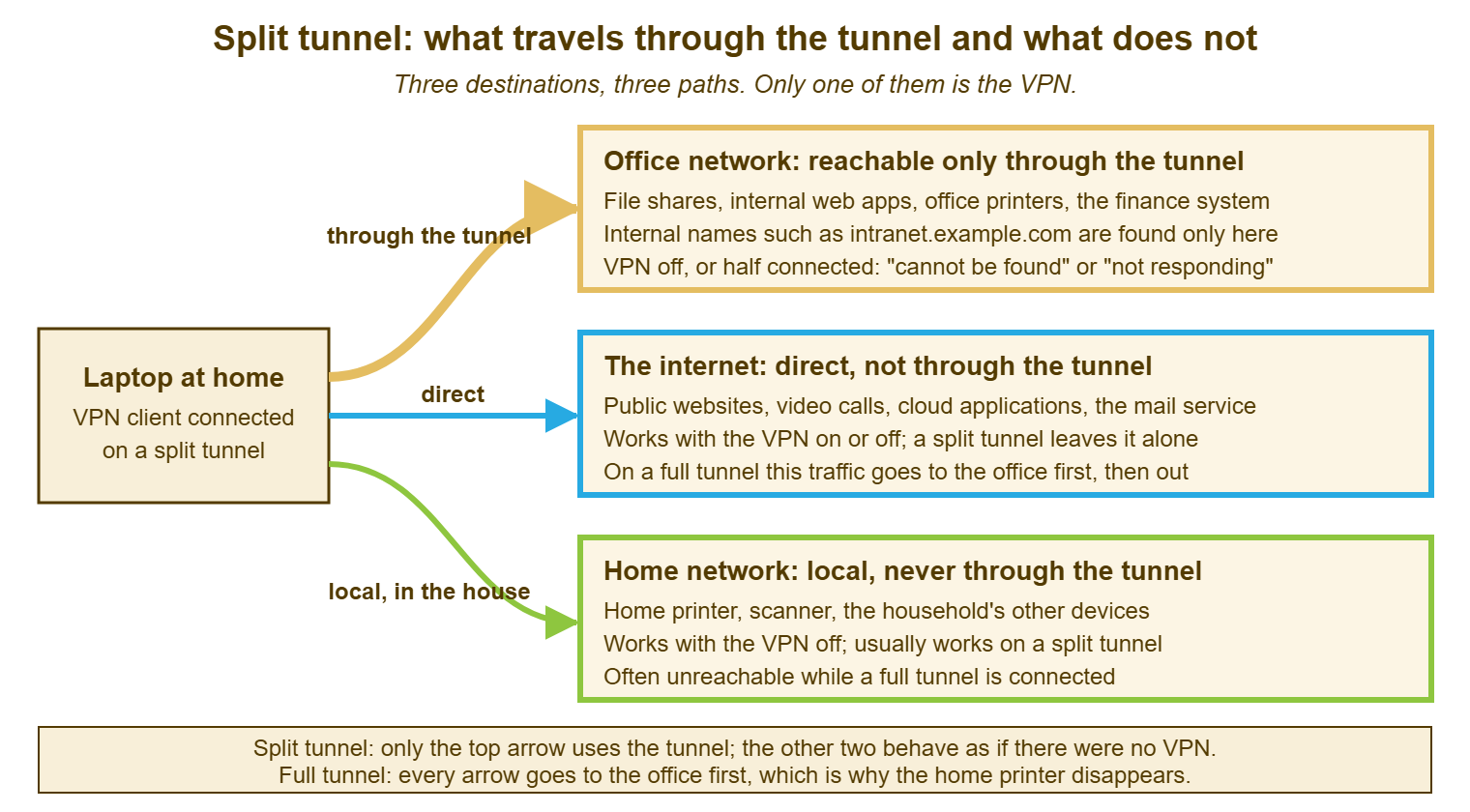
The picture below puts the three cases on one page. The laptop at home has three paths out: through the tunnel to the office, direct to the internet, and local to the house. Each destination box lists what lives there and what happens to it on a split tunnel. The strip at the bottom says how a full tunnel changes the picture, which is that every path becomes the first one.
Explaining It Without Teaching Networking
The user does not need the word DNS, the word tunnel, or the word split. Giving them any of the three turns a two-minute call into a seminar nobody asked for. What they need is a rule they can carry: some things only work when the VPN is on, some things only work when it is off, and the sheet says which is which. That sentence is the whole explanation for most users. The three-sentence form of it, "here is what happened, here is why, here is what to do", is the technique in The Three-Sentence Explanation. This category exercises that technique more than any other on the desk.
For Priya's intranet, the three sentences are: "The intranet link uses a short name that only works inside the office. From home, use the full name, which is on the sheet I'm sending, and it will open while the VPN is connected. Update your bookmark and it will keep working." For her printer: "When the VPN is connected your laptop behaves as if it is in the office, so it cannot see the printer in your house. Disconnect the VPN to print, or print to a file and send it later; this is how it is designed and not something broken. The sheet has a line for it." No corridor, no phone book, no acronym. The analogies in this article are for the technician, and the technician keeps them.
Say "designed" rather than "normal" when something is a consequence of the full tunnel, because "normal" sounds like a shrug and "designed" sounds like a decision, which it was. And never say "the VPN is working fine", even when it is, to a user who cannot print. The VPN is working as designed, the printer is unreachable as designed, and the user has a real problem that the sheet solves. All three sentences can be true at once, and the second and third are the ones the user hears.
The Triage Order for This Category
The order for a "connected but" ticket is short, because the test page does most of the work, and it goes from the cheapest fact to the dearest. Run it before touching anything, write each answer in the first note, and stop at the first step that explains the ticket. A desk that runs the five steps in order rarely needs to open a client log for this category at all.
- Ask for the test page: does the internal test page load by its full name while connected? If not, the tunnel is up in name only; reconnect, then the first two can't-connect steps.
- Find the thing on the sheet: is the resource one that only works on the tunnel, only off it, or either? Tell the user which column they are in.
- Check the name: was a short name used? Have the user type the full name from the sheet; if it works, update the bookmark and close.
- Separate permissions from reach: does the same resource open for a colleague on the same tunnel? If so, it is a permissions ticket, not a VPN ticket.
- Escalate with three facts: the exact name of the resource, whether it works with the VPN off, and whether the test page loads. The gateway owner can act on those in a minute.
Two things to notice about the list. It never asks the user to reinstall anything, because nothing in this category is fixed by reinstalling. And it produces, as a side effect, the entries the sheet does not yet have. Every ticket that reaches step five is a resource the sheet should have listed. Adding it is how the sheet grows from the desk's first afternoon of guessing into the thing users actually consult.
Remember: "connected" on the client means the tunnel exists, not that anything is reaching through it. Ask for the internal test page by its full name first; then find the resource on the what-works-where sheet; then check whether a short name was used. Full names always, and the sheet visible to everyone.
A Short War Story: Two Days at Stonebridge Insurance
When the claims team at Stonebridge Insurance moved to working from home, Alan on the desk sent everyone a one-line note. It said "connect the VPN and everything will work". That was true for the claims system and false for the document-signing service the team used for every settlement. The organisation ran a full tunnel, so the signing service saw every request arriving from the office's address. The office's web filter blocked it. The filter had never been told about the service because nobody had used it from inside the building. Forty tickets arrived in two days, each one diagnosed from scratch, because every technician assumed the VPN was the cause. The VPN was, by its own lights, working perfectly. The signing backlog reached three hundred settlements before a technician tried the service with the VPN off. The technician found it worked and sent the filter's owner a two-line request that was done in ten minutes. The cost was two days of a team of nine unable to close claims and about twenty technician hours spent on forty copies of one fault. Alan's sheet, written that evening, had the signing service on the first line. It had the words "works with the VPN off; if it fails while connected, tell the desk which page". The ticket never came back.
The What-Works-Where Sheet
The sheet below is the one to publish to every remote user, written for them rather than for the desk. Keep it as a knowledge base article that anyone can open without signing in to the office first. The people who need it most are the ones whose VPN is the problem. Fill in one row per resource the organisation uses, in the user's words for it, with the full name to type where there is one. Fill in the column for whichever tunnel design you run. Delete the other column or keep both with the group named. If you run QuerySolv, this is a knowledge base article visible to everyone, with the agents-only notes about the gateway kept on a separate internal article. The sheet is the single most reused document in this whole series, and it costs an afternoon.
| What you want to use | At the office | From home, VPN connected (split tunnel) | From home, VPN connected (full tunnel) | From home, VPN off | What to type, and notes |
|---|---|---|---|---|---|
| The internal test page | Works | Works | Works | Not reachable | test.example.com — if this does not load while connected, disconnect and reconnect, then tell the desk |
| Shared drives and the drawings folder | Works | Works | Works | Not reachable | Slower than at the office; large files are best opened, not copied |
| The intranet | Works | Works | Works | Not reachable | Use the full name intranet.example.com, not the short one; update your bookmark |
| The finance system | Works | Works | Works | Not reachable | finance.example.com; if it opens for a colleague and not for you, ask the desk about permissions |
| Office printers | Works | Works | Works | Not reachable | Prints wait at the office until collected |
| Your home printer and scanner | Not reachable | Works | Not reachable while connected | Works | On a full tunnel, disconnect the VPN to print, then reconnect |
| Webmail and the calendar | Works | Works | Works, via the office | Works | Does not need the VPN at all |
| Video calls | Works | Works | Works, often worse | Works | On a full tunnel, disconnect for long calls unless you need office files during them |
| The document-signing service and other cloud applications | Works | Works | Works, via the office filter | Works | If it fails only while connected, tell the desk which page; do not reinstall anything |
| Public websites | Works, filtered | Works | Works, filtered as at the office | Works | A site blocked at the office is blocked on a full tunnel |
| ______________ | ______ | ______ | ______ | ______ | ______________________________ |
Leon sent Priya the sheet at 09:45 with the two three-sentence explanations above it. She updated the bookmark, printed the tenancy letter with the VPN off, reconnected, and replied "so it was never broken". That is the sentence this whole article exists to produce. The ticket closed with the category corrected to name lookup and a note that the sheet needed a line for the rent system's reporting page. It got that line that afternoon. The sheet is kept current the same way. Every ticket that reaches the desk about a thing not on it is a line missing. The person who closes the ticket adds the line. Sheets, unlike tunnels, get better the more people walk through them.
Frequently Asked Questions
How do I find out whether we run a full tunnel or a split tunnel?
The test page loads but the shared drive still will not open. Is that still a VPN ticket?
A user wants the home printer to work while connected on our full tunnel. Can the desk do that?
Why does the short name work in the office and not at home?
Should the sheet be visible to everyone, or only to the desk?
A cloud service fails only when the VPN is connected on our split tunnel. Who fixes that?
From the QuerySolv team: we build self-hosted help desk software for Windows. QuerySolv runs as one Windows service on your own network. It takes requests by web form, e-mail, live chat, social messages and REST API. It is licensed once per installation rather than per agent per month. The free trial runs the full product for 30 days.